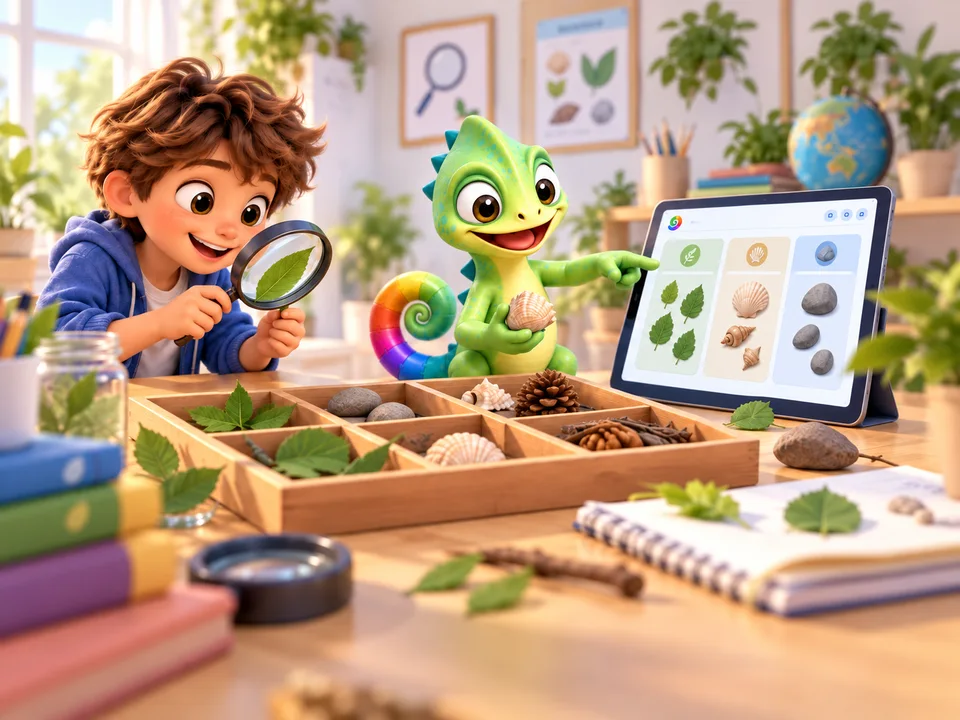
Science
Explore a question
Change one number in a drawing. Predict the result, try it out and explain what you see.
DEVELOPED IN THE NETHERLANDS
Pliro is a programming language for children. Your child or grandchild can make their own games, drawings and other programs. With familiar words or blocks they fit together.
Bring STEM to life through coding: investigate, design and put maths to work in something you make yourself.
Start for free·From around age 8·No experience needed
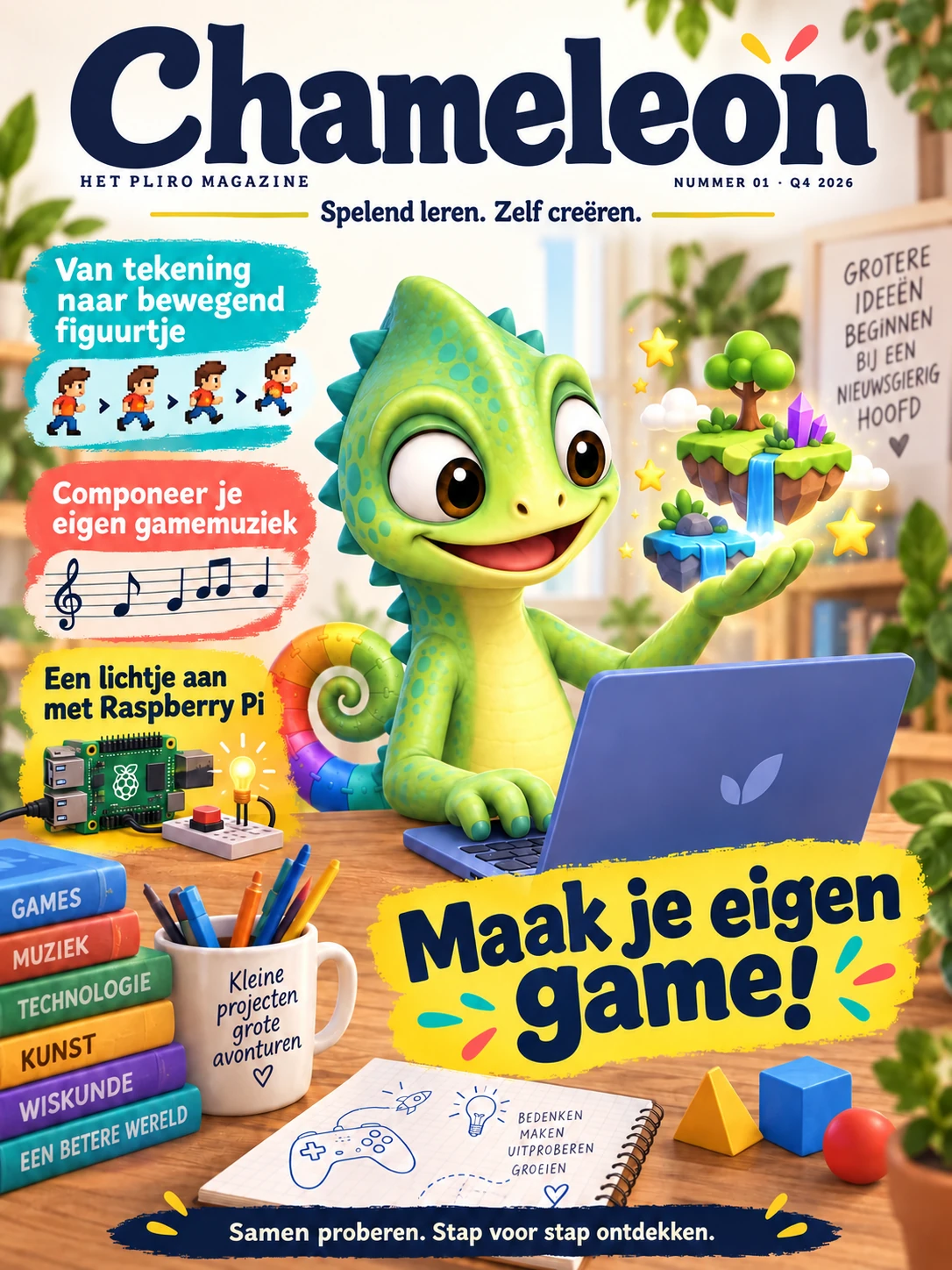 Ready to read, discover and create together?Discover Chameleon, the Dutch-language Pliro magazine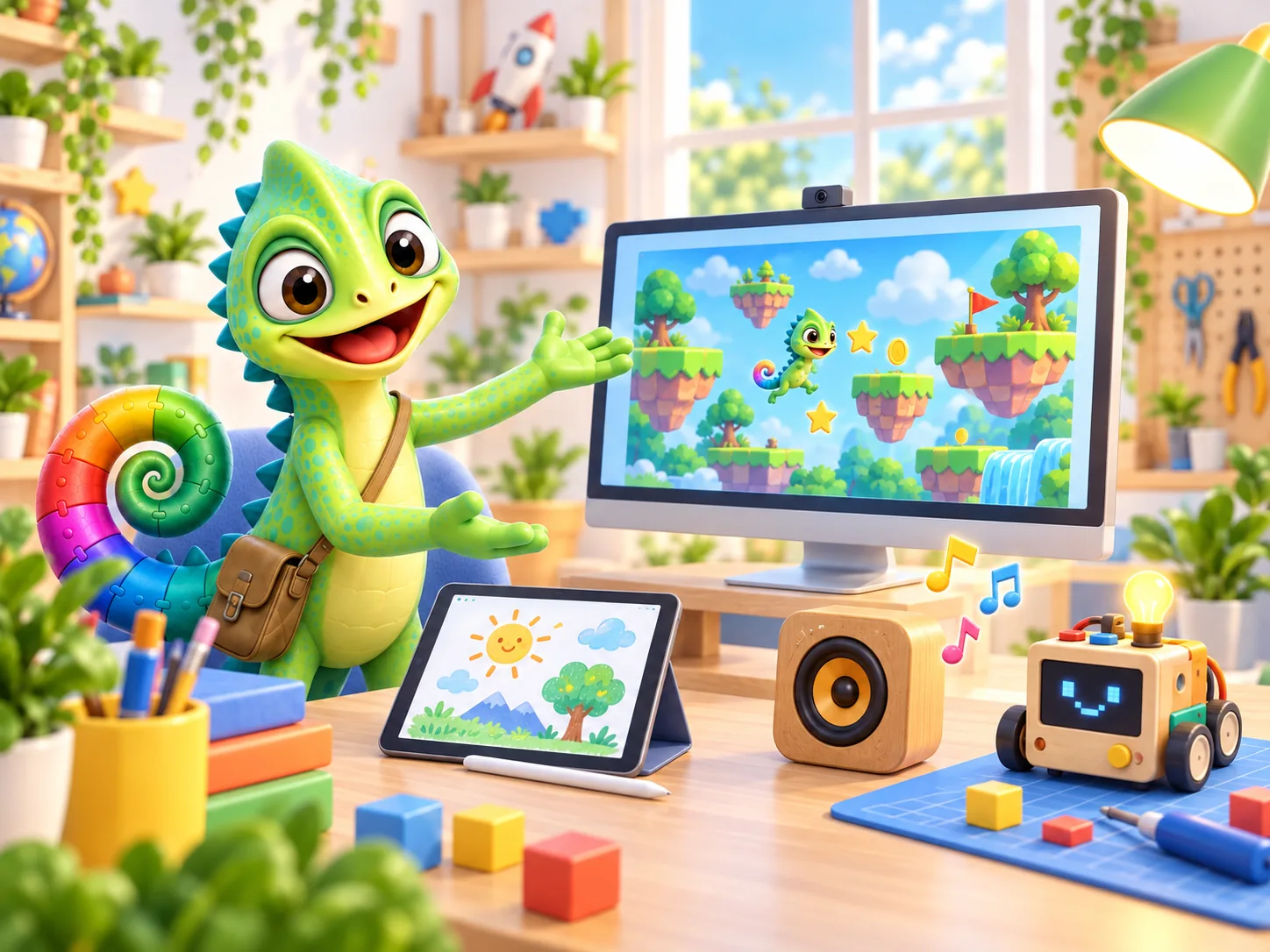
THINKING FOR YOURSELF IN A WORLD WITH AI
AI can help with ideas and code. But what do you want to make? Which steps will it take? Does the result work? Pliro was developed in the Netherlands to give children practice with these questions.
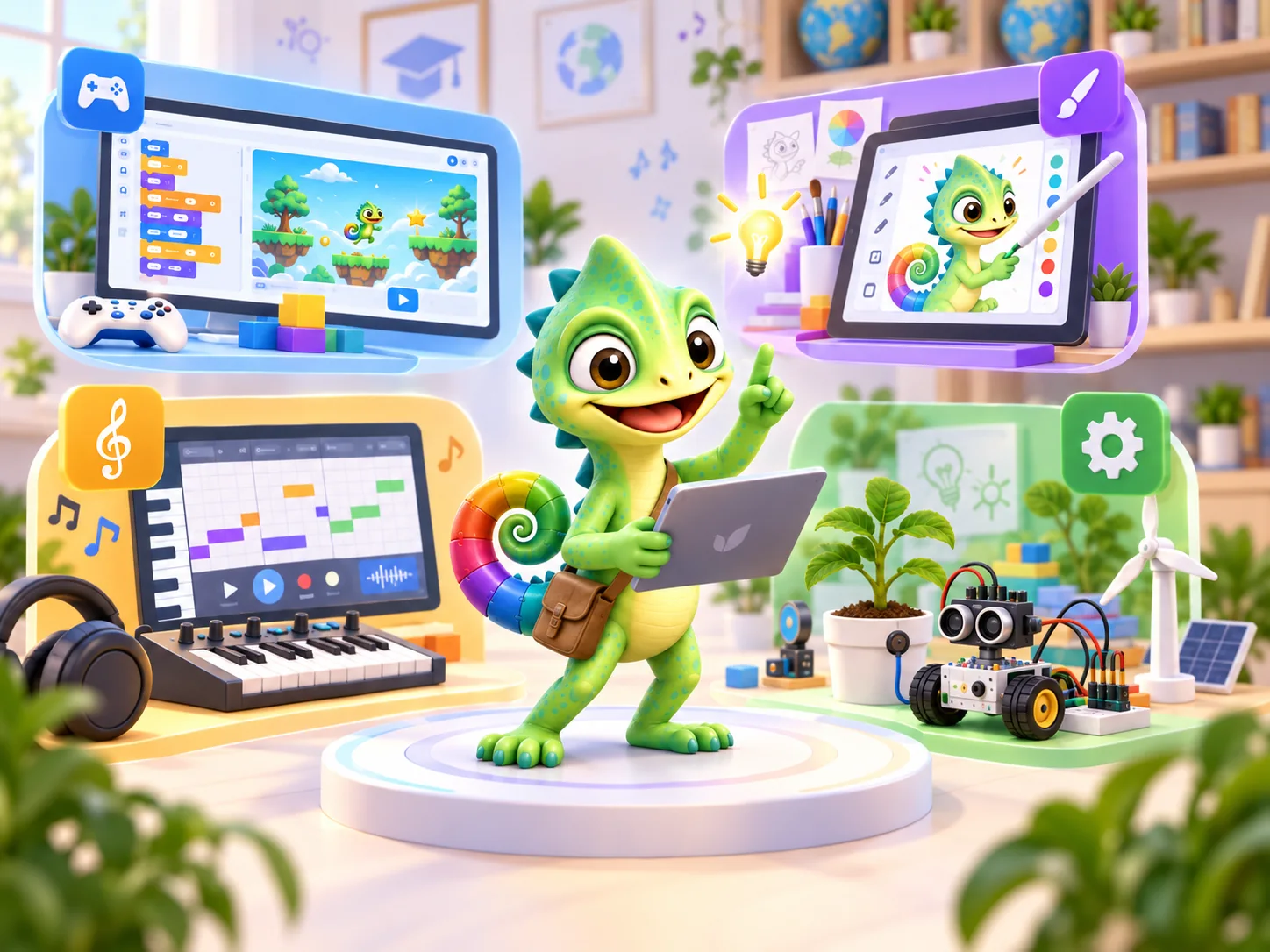
Your child wants to make a game. When should the player earn a point? What happens if they click in the wrong place?
Your child turns the rules into small steps and checks whether the computer does what they intended.
Did something unexpected happen? Your child works out why, makes a change and explains what they discovered.
You do not need to know the answer. Try asking: ‘What do you think will happen?’ or ‘How could we try that out?’ You are helping your child think for themselves.
STEM · LEARN BY MAKING
How does this work, and can I make it myself? STEM gives children practice in exploring questions, testing ideas and explaining their choices. It connects what they learn with the world around them.
STEM stands for Science, Technology, Engineering and Mathematics: exploring questions, understanding tools, designing solutions and working with numbers.
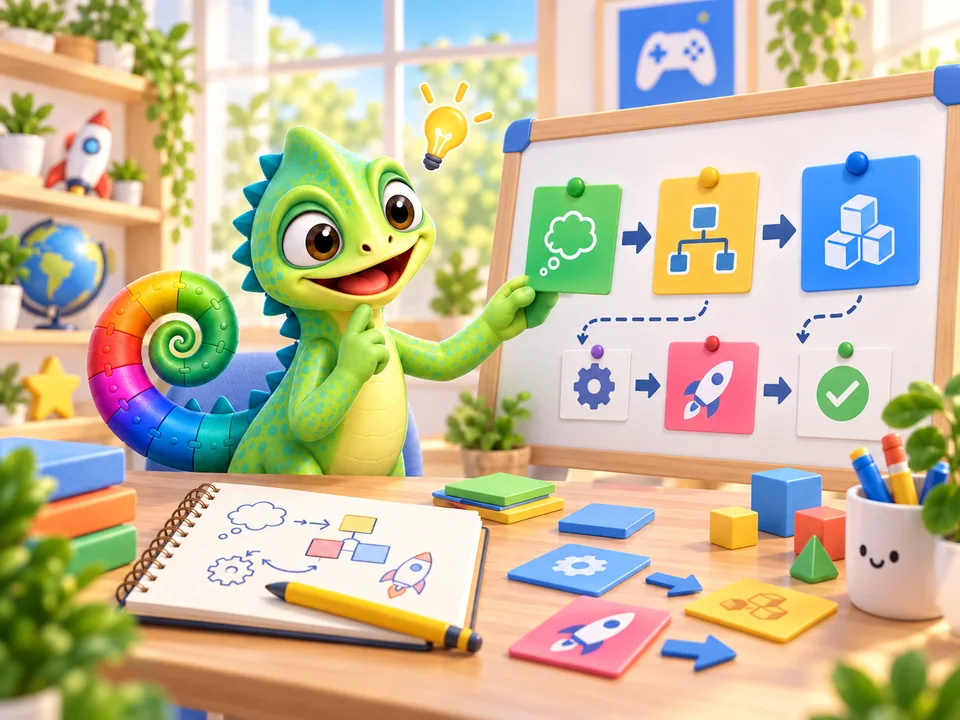
Science
Change one number in a drawing. Predict the result, try it out and explain what you see.
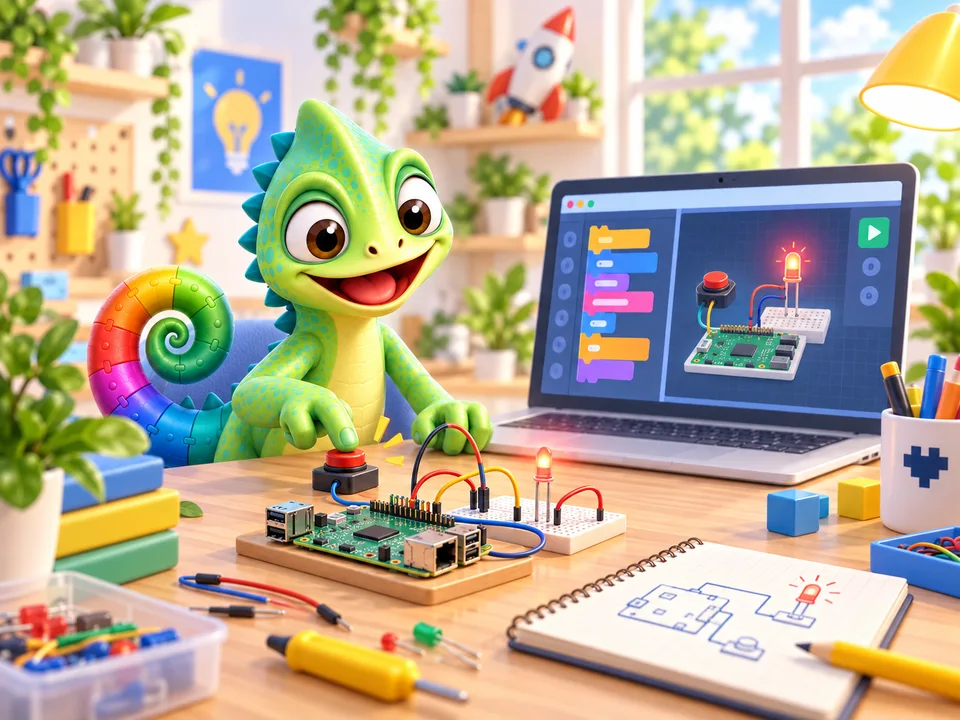
Technology
Give the computer instructions with blocks or text. Find the step that makes your drawing move.
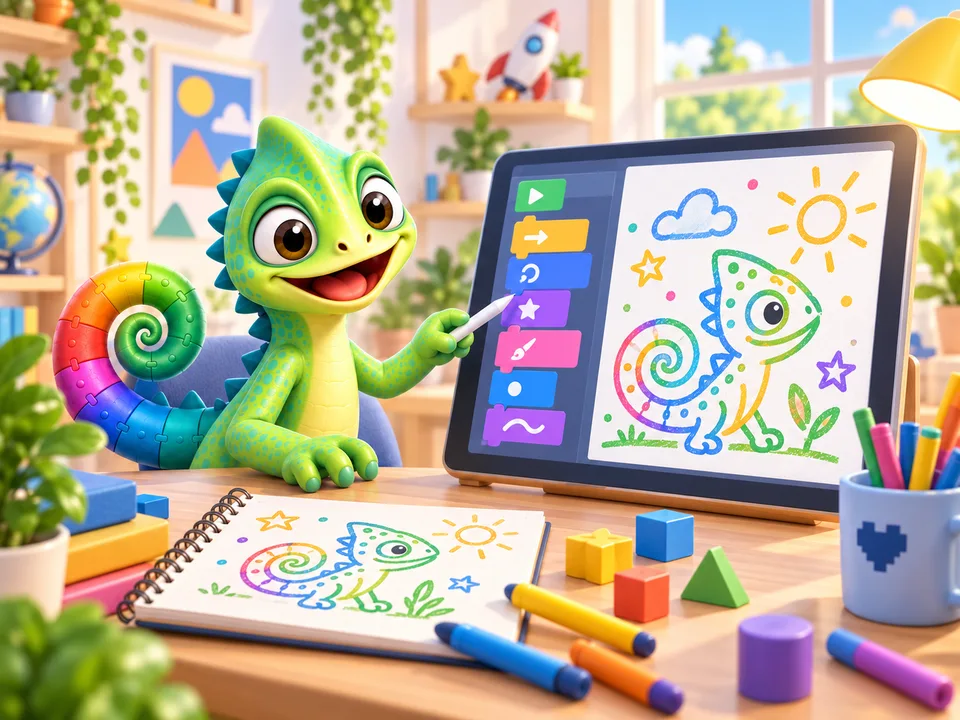
Engineering
Design a route or a game rule, let someone try it and improve one part of your solution.
Mathematics
Explore angles, distances and patterns with the turtle. A square needs a turn of 360 / 4 degrees.
TRY IT TOGETHER
From four sides to six: what needs to happen to the turning angle? Ask your child to predict, draw and compare.
These first STEM projects work with free Learner. Physical projects with lights or sensors need a Raspberry Pi and suitable separate components, with adult guidance.
Background: Council for Science and Technology on STEM educationAT HOME, WITH GRANDPARENTS OR IN CLASS
You do not need to know how to code. Being curious, watching and asking questions is a good place to start.
Your own game or a funny drawing? Pick something you like and try it out.
Explore things to make
Help your child or grandchild get started, even if computers are not your thing. Choose a small project and explore together.
How you can help
Let pupils think of their own solutions and explain them. With readable instructions and teaching resources to get started.
Explore Pliro for your classHOW YOUR CHILD LEARNS TO CODE
Programming means telling a computer what to do. Just as a recipe has steps, a program has instructions.
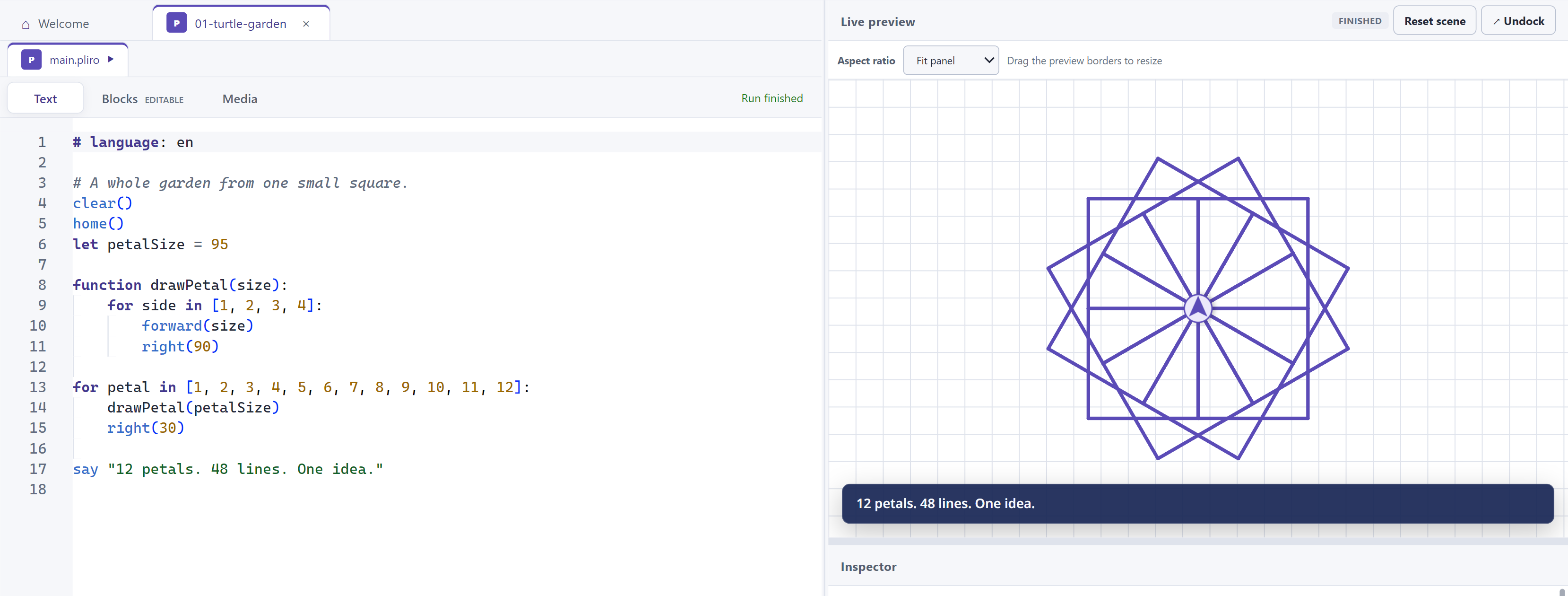
With instructions such as ‘forward’ and ‘right’, your child makes a drawing appear. They can start in English or Dutch.
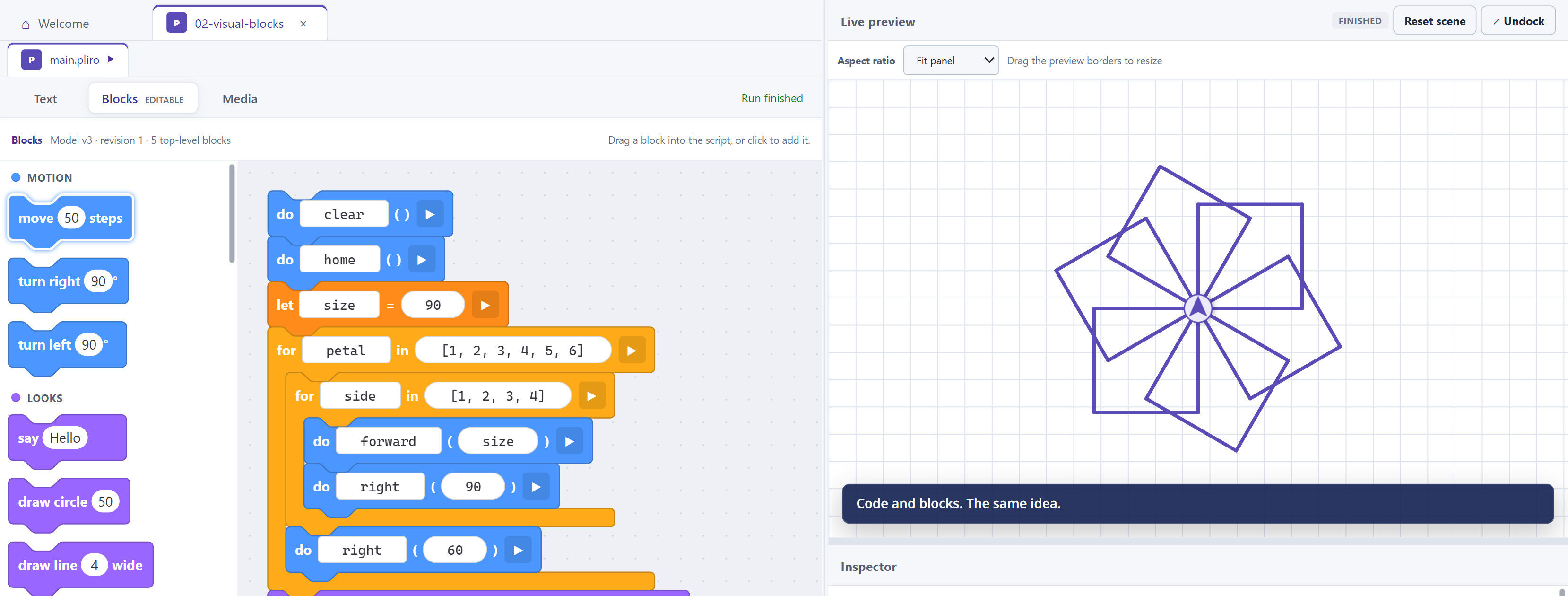
Your child can also use coloured blocks. Each block is an instruction. They can make a plan and see what each step does.
Is the character turning the wrong way? Change an instruction and try again. A mistake gives you a new clue.
TRY IT TOGETHER
Change the number of sides. Predict what happens to the turning angle, draw the shape and compare. Bring investigation, coding and maths together.
Ready to make something
This is a small example of coding. In Pliro, your child can change the instructions themselves.
Try in the playgroundCHAMELEON · THE DUTCH-LANGUAGE PLIRO MAGAZINE
How does the world around us work? And what could you make yourself? Every two months, Chameleon brings curious children science articles, surprising facts and creative STEM projects. Read about nature and technology together, then bring ideas to life with Pliro: from a game or animation to music of your own.
Every two months · 6 issues per year · postage within the Netherlands included
First issue planned for January 2027
A standalone magazine subscription. Review the price and terms first.
YOUR CHILD’S CREATIVE WORKSPACE
Pliro includes a workspace where your child makes their program. On the left, they put instructions together using words or blocks. On the right, they see what those instructions do.
THINGS YOUR CHILD CAN MAKE
A maze, a quiz or a light that responds to a button. Start with an example and make it your own.
YOUR FIRST LINE OF CODE
Give the drawing turtle a few instructions. Your child can create lines, stars and other patterns.
Download example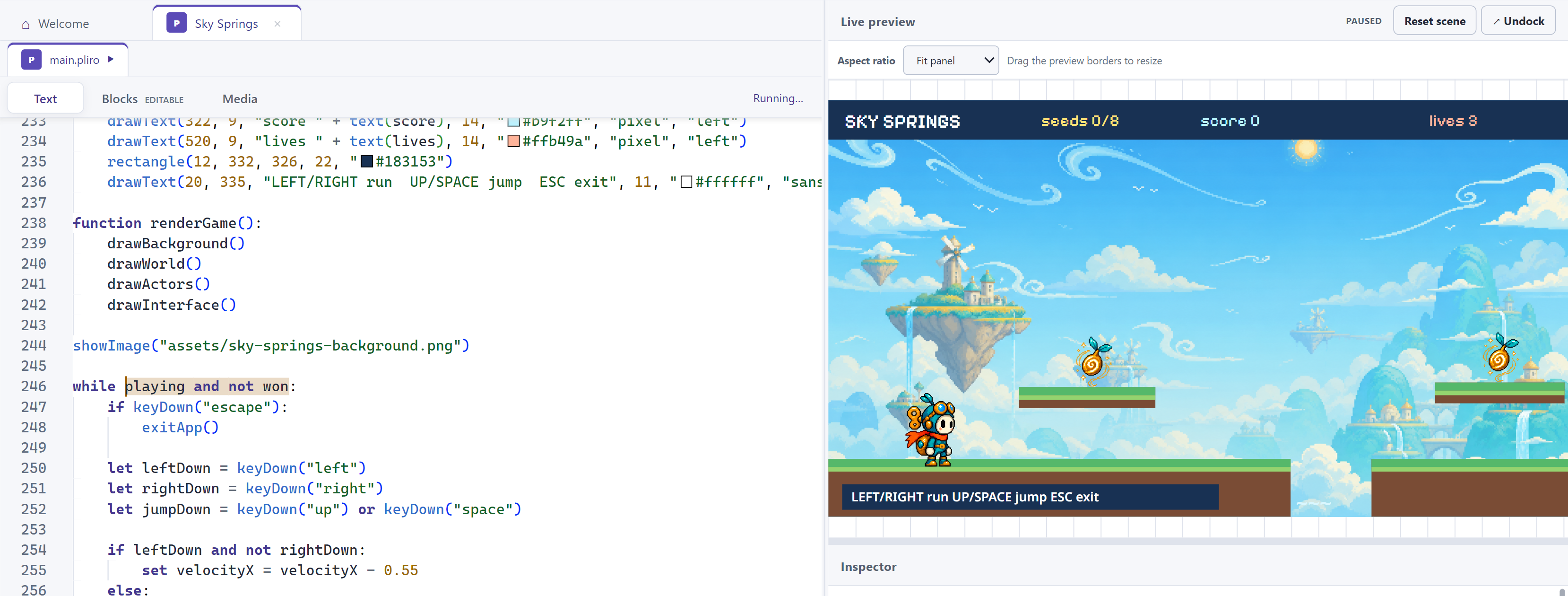
FOR PLAYFUL MAKERS
Make a maze game of your own. Change the example and invent a challenge. The picture shows another game made with Pliro: Sky Springs.
Download example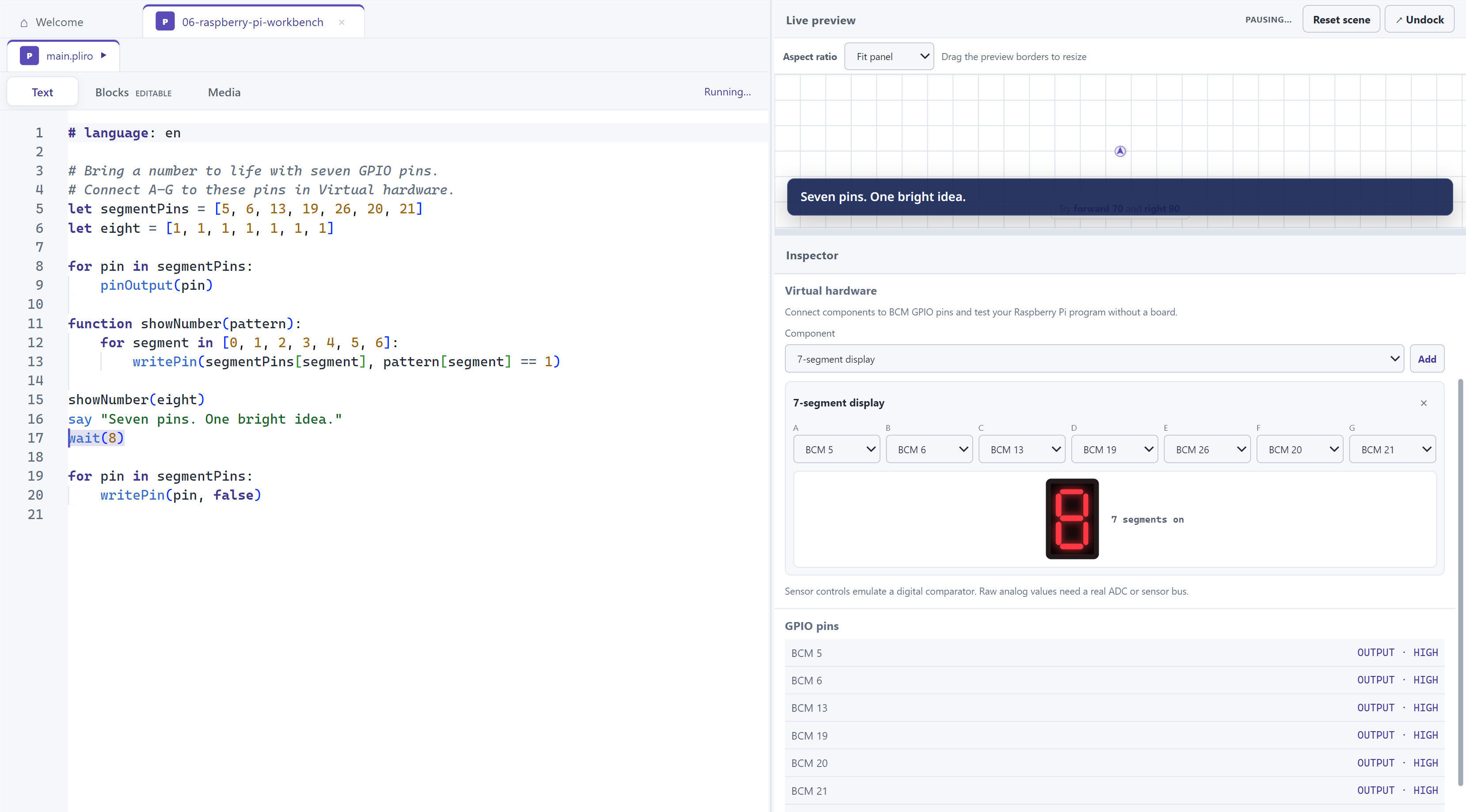
FOR LITTLE INVENTORS
Try a light and button on screen. Discover how they work before connecting real parts.
Download example3 projects shown
MADE WITH PLIRO
These are real Pliro games. Pick one, play, and explore the code that makes it work.
REAL GAMES AND PROGRAMS
Your child can make a game, quiz or other program that runs on a computer by itself. Pliro does not have to be open. This is called a standalone or ‘native’ program.
Make a game or useful program for a Windows computer. Let someone else try the result.
Your child can also make a standalone program for a Linux computer with a 64-bit Intel or AMD processor.
This small computer can connect real lights and buttons to a program. These connections are called GPIO: they take an idea from the screen into the real world.
The Pliro IDE is available for Windows 10/11 and supported Debian-based Linux computers (AMD64). The .deb package is for 64-bit Intel and AMD processors. Raspberry Pi is a target for the apps you build; it uses a different processor.
What do these words mean?CREATOR PRO · FOR YOUR NEXT BIG IDEA
Arrange animations on a timeline, design forms and give your game its own soundtrack. Creator Pro adds visual tools, deeper debugging and the capabilities to build more ambitious apps.
Keep creating in the same Pliro. Bring the projects you have already made.
 Creator Pro
Arrange animation frames, design forms and compose multiple musical parts with instruments, volume controls and tempo changes.
Pause at breakpoints, follow function calls and inspect values. Repeat your tests and discover which statements take time.
Use SQLite, selected files and folders, broader web requests and WebSockets. You explicitly approve access to your files and network.
CHOOSE WHAT YOUR PROJECT NEEDS
Learner gives you a complete start. Choose Pro when your next project needs visual editors and more advanced development tools.
| What would you like to do? | Learner · free | Creator Pro |
|---|---|---|
| Code and play | Full language, Blocks, sprites, 3D and simple melodies | Everything in Learner |
| Make animations and forms | Through code | Visual editors too |
| Arrange music | Through code and the simple melody editor | Multitrack composer too |
| Investigate mistakes | Basic stepping, inspection and error messages | Breakpoints, watches, tests and source profiling too |
| Work with data and the web | Saved values and bounded HTTPS GET | SQLite, chosen files, authentication, streams and WebSockets too |
| Export apps | Your operating system and Raspberry Pi, with Pliro branding | Other supported operating systems too |
| Develop commercially | Not included | Included with paid Pro |
No commercial limits on code lines, projects or runs. With valid Learner access, your projects remain yours to open, edit and save after Pro ends.
Removing branding requires paid Pro and the separate verified branding entitlement. Technical Pro features also work with a valid Pro trial entitlement; commercial rights require paid Pro.
Yes. With valid free Learner access, you can open, edit and save your projects. Ordinary Core code made in a Pro editor still runs. Only a run or build that uses actual Pro capabilities needs Pro.
Your generated apps contain no Pliro product-licence check. They keep working independently of your later subscription. Export for a supported system and approve only the runtime permissions the app needs.
The public playground offers free coding basics and the simple melody editor. Use the desktop app for Pro editors, debugging and tests. Advanced data and networking work on supported desktop and native hosts.
Learner and Creator Pro
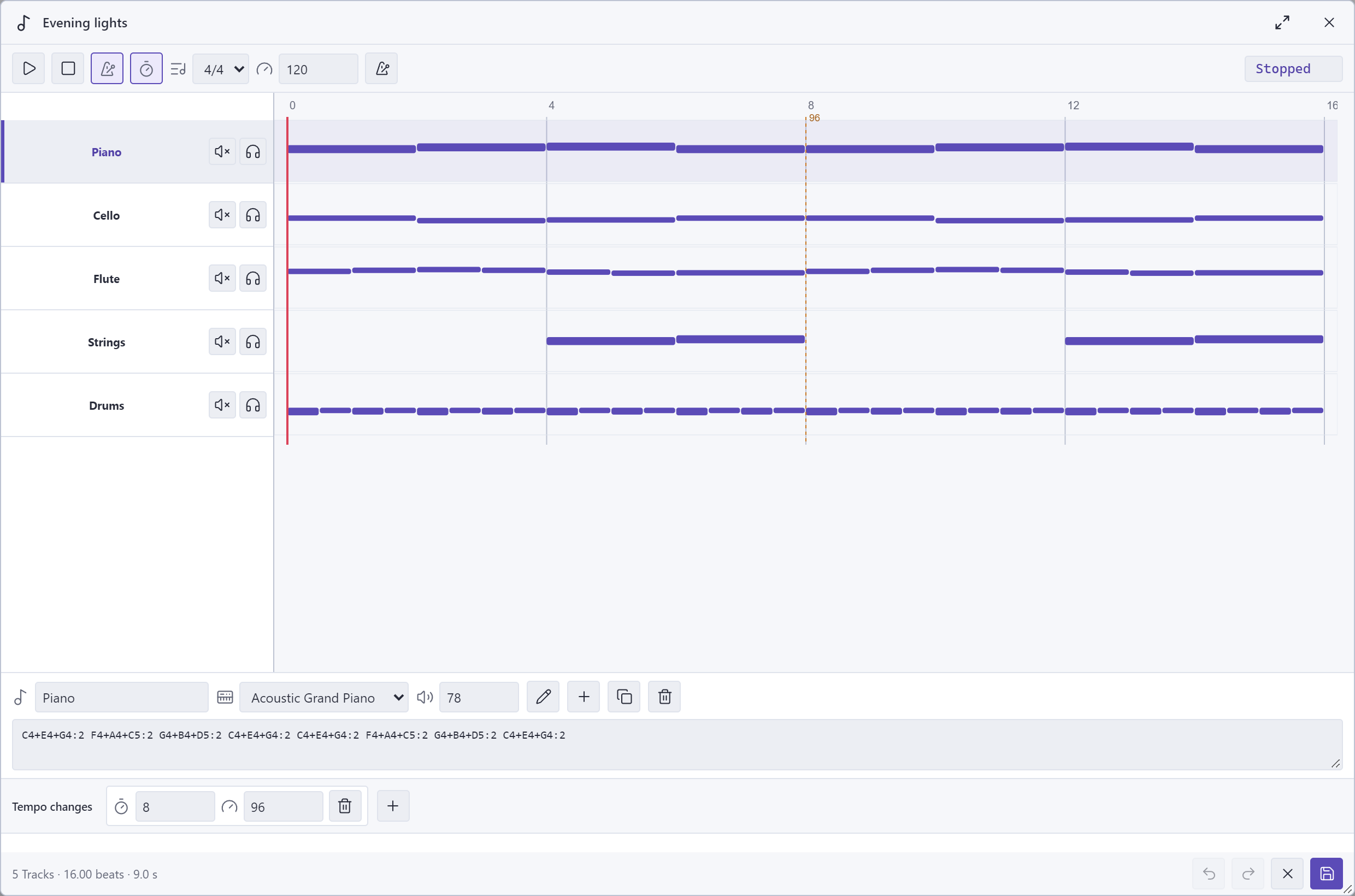
Give melody, bass and drums their own tracks. Choose General MIDI instruments, enter notes with a MIDI keyboard, and try the metronome and tempo changes. The multitrack composer requires Creator Pro in the desktop app; the simple melody editor and music playback remain free.
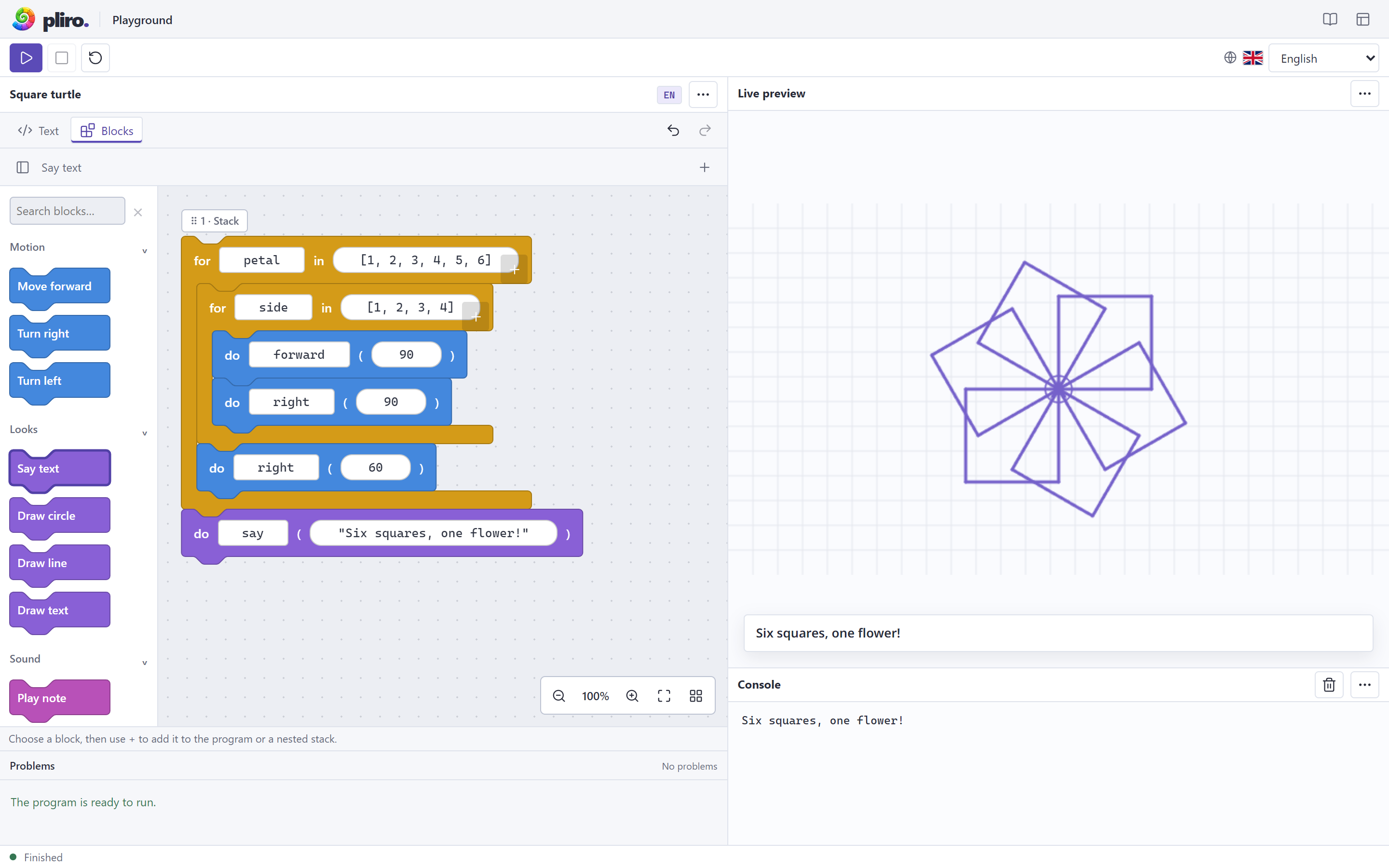
Switch between text and blocks, add commands from the block palette and see the result straight away. Your code and music stay editable, with undo across both views.
Read the playground guide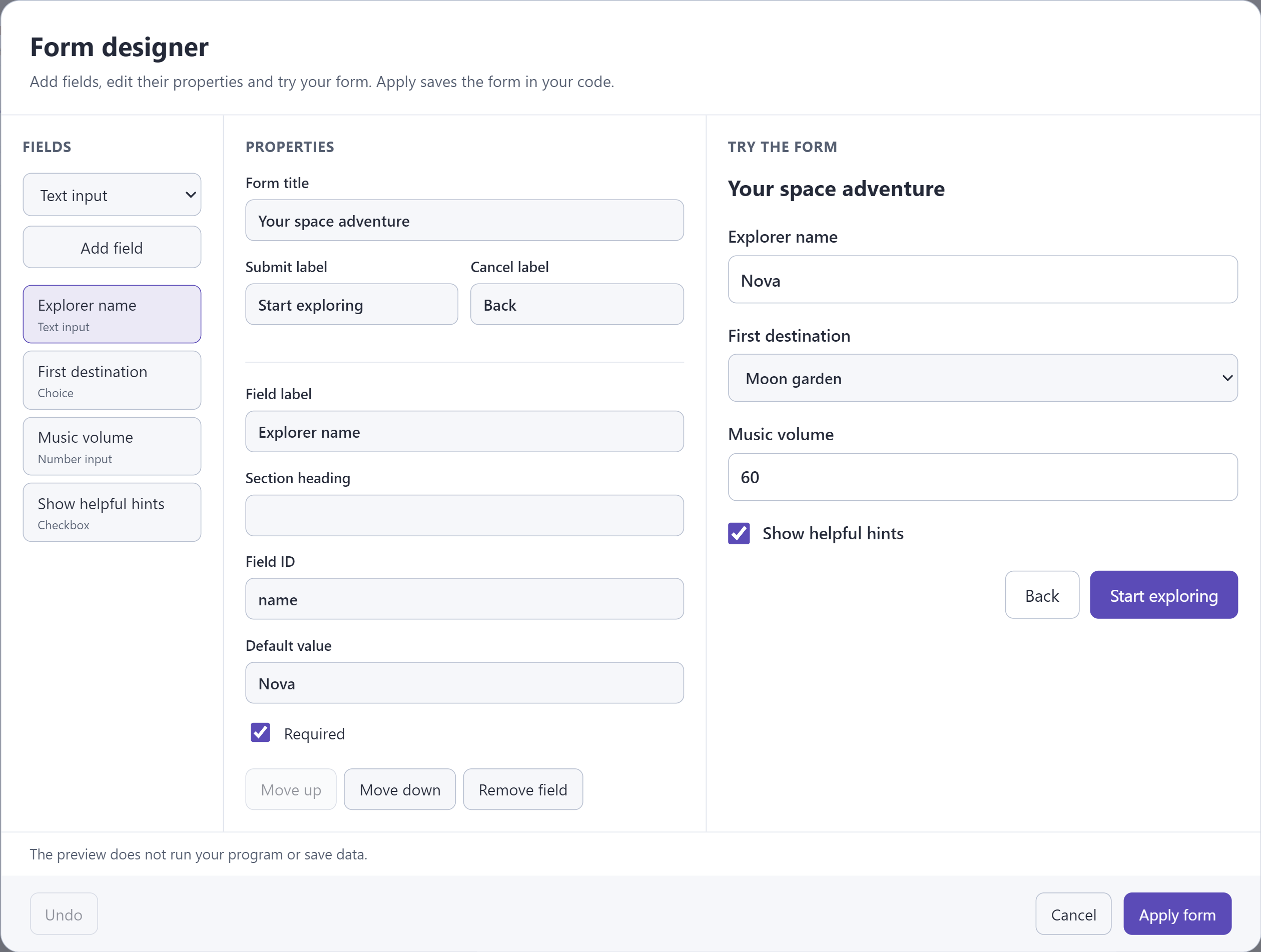
Design and preview forms with Creator Pro. Basic forms through code remain free in Learner, including forms saved by the designer.
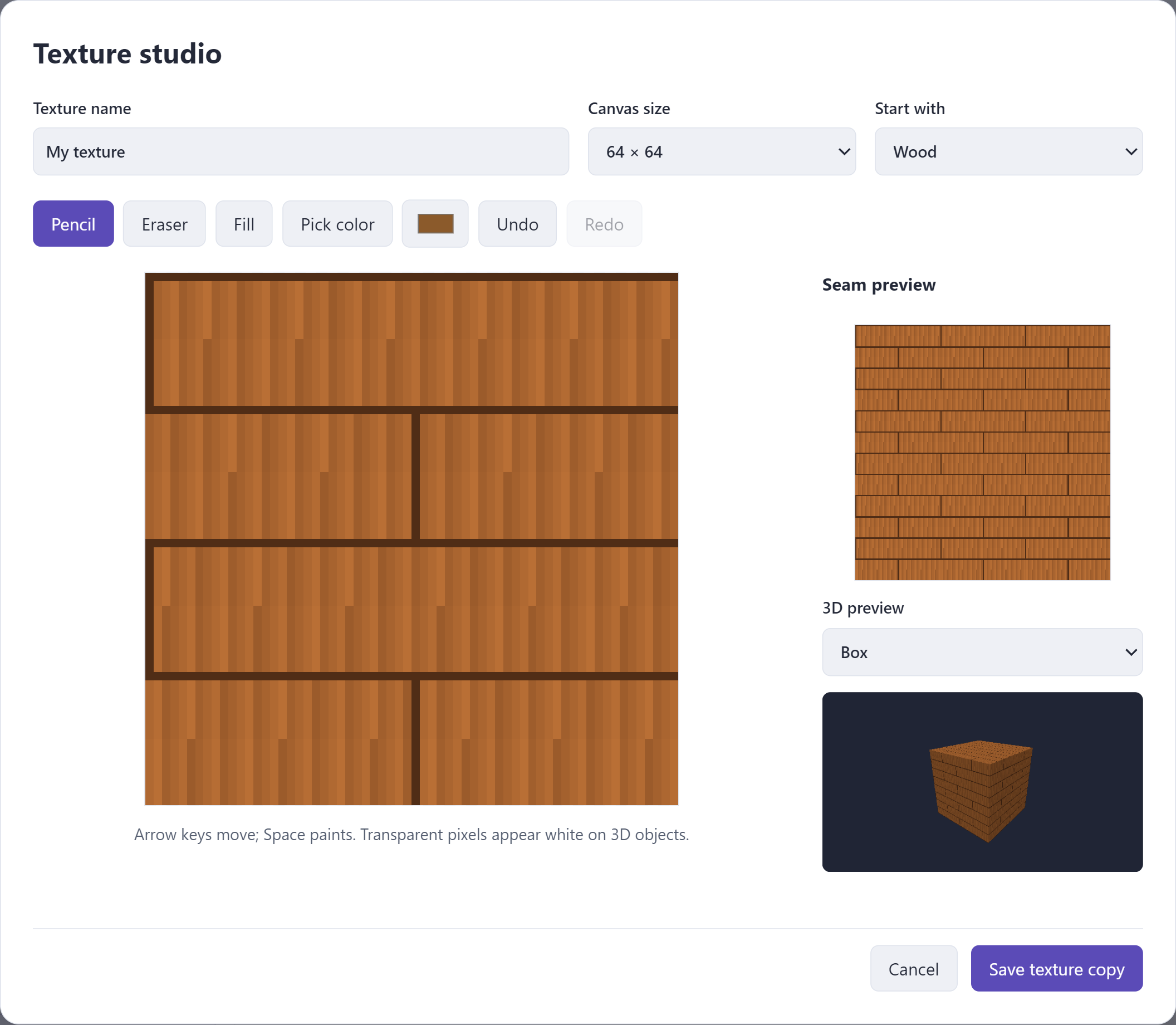
Paint a pattern and put it on a 3D shape. See how it looks on a box, ball or cylinder.
QUESTIONS FROM PARENTS AND GRANDPARENTS
Pliro is a programming language for children, developed in the Netherlands. It comes with a workspace where your child creates instructions using words or blocks. They can make and try out drawings, games and other computer programs.
Pliro is designed for children roughly aged 8 to 14 and other beginners. Curiosity, reading skills and support matter more than an exact age. Start small and see what suits your child.
Pliro Learner is free. Your child can learn to code, make games and save their work. When you first start, request a free licence key: a code that lets you start using Pliro. Paid editions offer extra capabilities: Creator Pro for makers and Classroom for schools. You do not need to buy them to begin.
Install the Pliro IDE on Windows 10 or 11, or use the Linux AMD64 .deb package on a supported Debian-based system. AMD64 means a 64-bit Intel or AMD processor. The Linux build requires the package’s dependencies: Ubuntu 24.04 is the build baseline; Debian 13 or newer must satisfy those dependencies. Ubuntu 22.04 and Debian 12 are not supported. You can also build apps for Raspberry Pi; this download is not a Raspberry Pi IDE installer.
Your child can start with English or Dutch instructions. For example, forward and right in English, or vooruit and rechts in Dutch. The same ideas and game rules still work if they choose the other language later.
No. You can help by watching and asking questions: what do you want to make, what do you think will happen, and what could you change? Start with one example and let your child use the controls.
AI can help, but it does not make every decision for you. Someone needs to decide what the program should do and check the result. With Pliro, your child practises planning, thinking logically, trying things out and explaining them. That is useful when working with AI too.
Your child practises breaking a big idea into small steps, making choices and checking results. They also discover that computers follow rules created by people. These are useful things to explore, whatever your child wants to do later. They do not have to become a programmer.
With Pliro, your child makes something and discovers what their own choices do. Agree on a small goal, such as drawing a square or changing one game rule. Afterwards, ask them to tell you or draw how they did it. Decide together how long you want to spend on it.
Yes. Free Learner exports standalone apps for your own operating system and Raspberry Pi, with Pliro branding. Creator Pro adds other supported operating systems. The recipient does not need a Pliro licence to use your generated app.
No. You can begin with a Windows computer or a supported Linux computer. In Pliro, you can first try lights and buttons on screen. To make real parts respond, you need a Raspberry Pi with suitable software and components. Follow the instructions for that project.
They are connection pins on a Raspberry Pi. A program can use them to turn on a light or read whether a button is pressed. Your child can see their own rules working in the real world.
Download Pliro and choose the free Learner edition. Then open an example. Change one number or instruction together and see what happens. If you come across an unfamiliar word, our glossary explains it simply.
START TOGETHER, FOR FREE
Download Pliro Learner for Windows 10 or 11, or use the Linux package below. Open an example and let your child change one thing. See what happens together.
Also available for Linux AMD64 (.deb)For supported Debian-based systems · 64-bit Intel / AMD
Learner is free. When you first start, use an email address to request a free licence key: the code that lets you start using Pliro. Pliro is still growing.