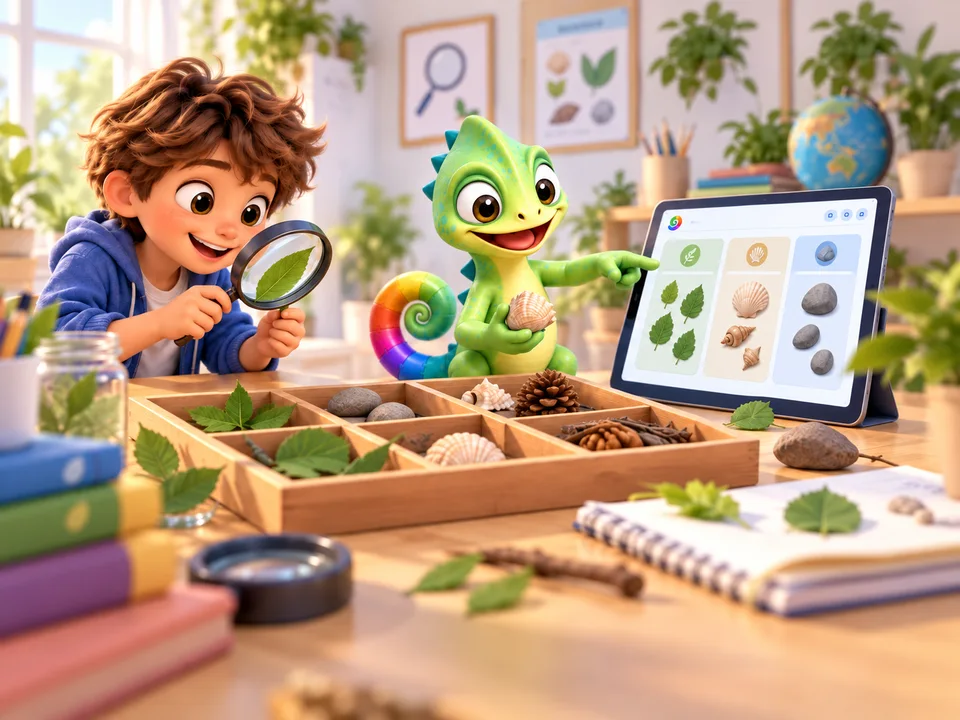
Science
Explore a question
Change one number in a drawing. Predict the result, try it out and explain what you see.
PLIRO / FOR TEACHERS & SCHOOLS
A child draws a square. You see a prediction, a loop and an idea taking shape. With Pliro, a programming lesson becomes a chance to investigate, design and explain.
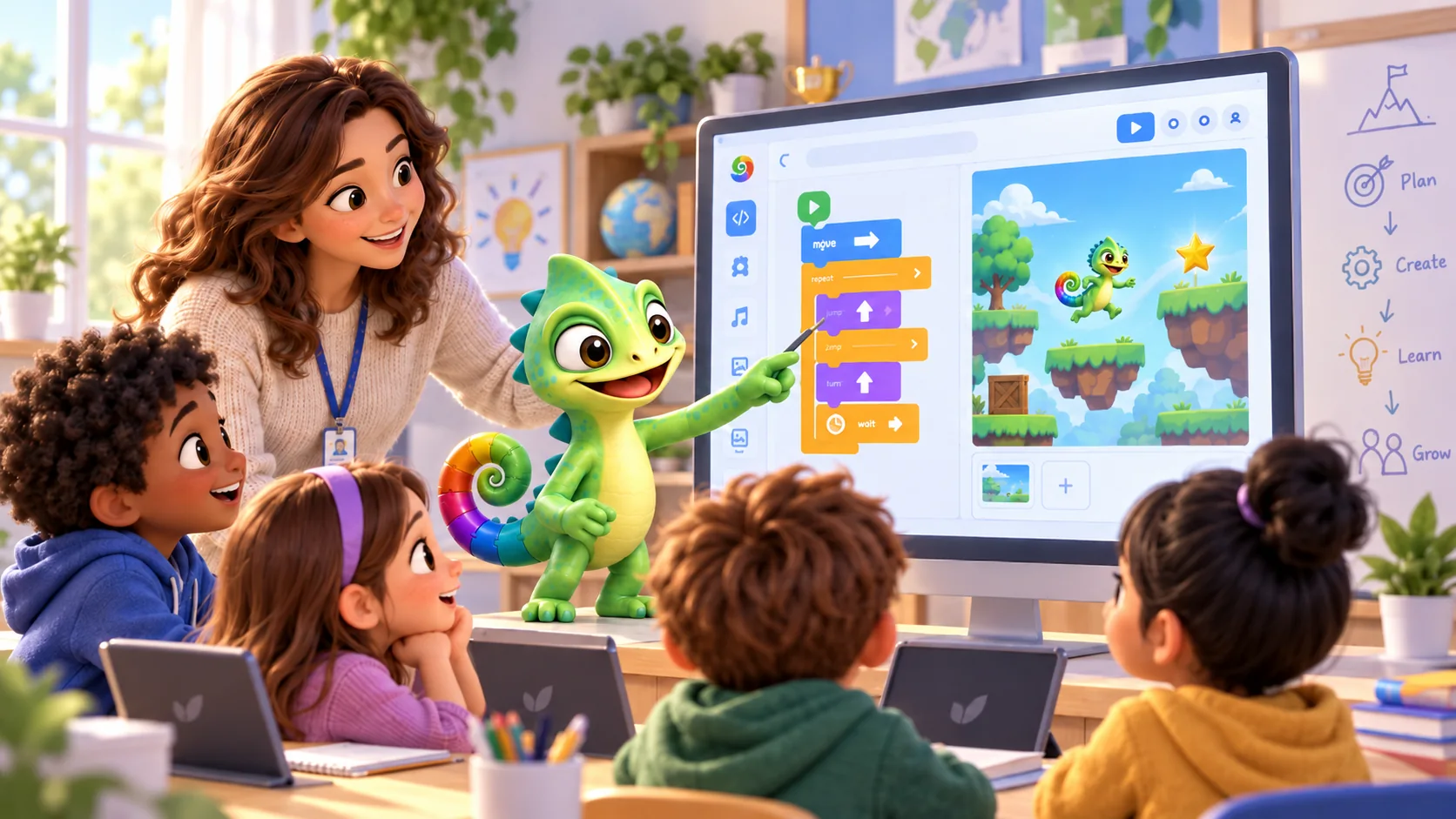
STEM · LEARN BY MAKING
STEM connects subjects through a meaningful challenge. Pupils apply maths, investigate a question and improve a design. Ask them to predict, compare the result and explain their discoveries to a classmate.
STEM stands for Science, Technology, Engineering and Mathematics: exploring questions, understanding tools, designing solutions and working with numbers.
Science
Change one number in a drawing. Predict the result, try it out and explain what you see.
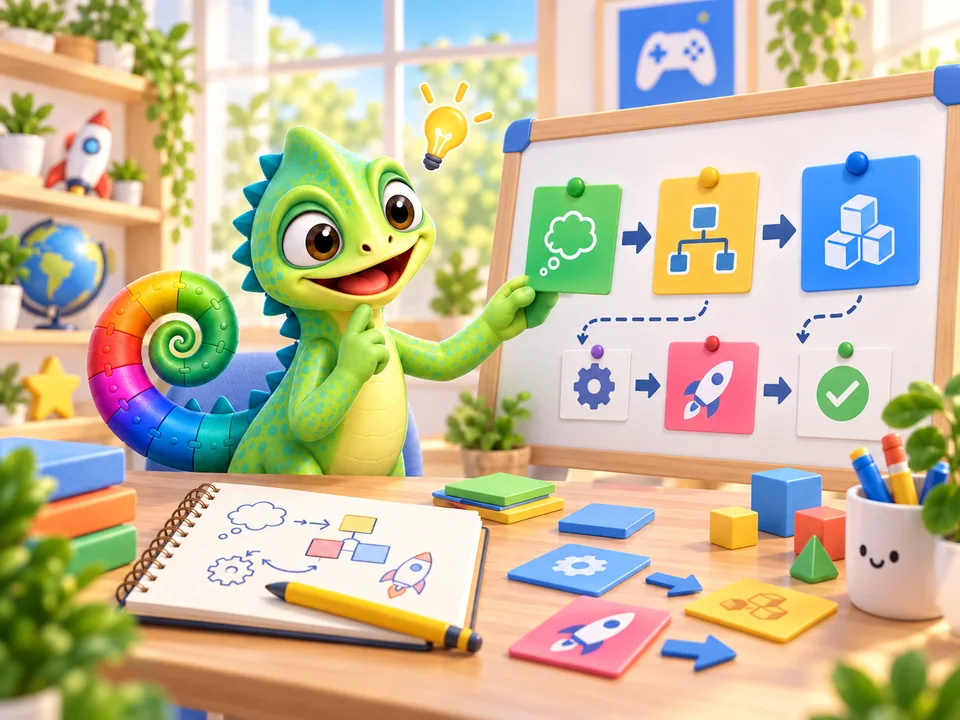
Technology
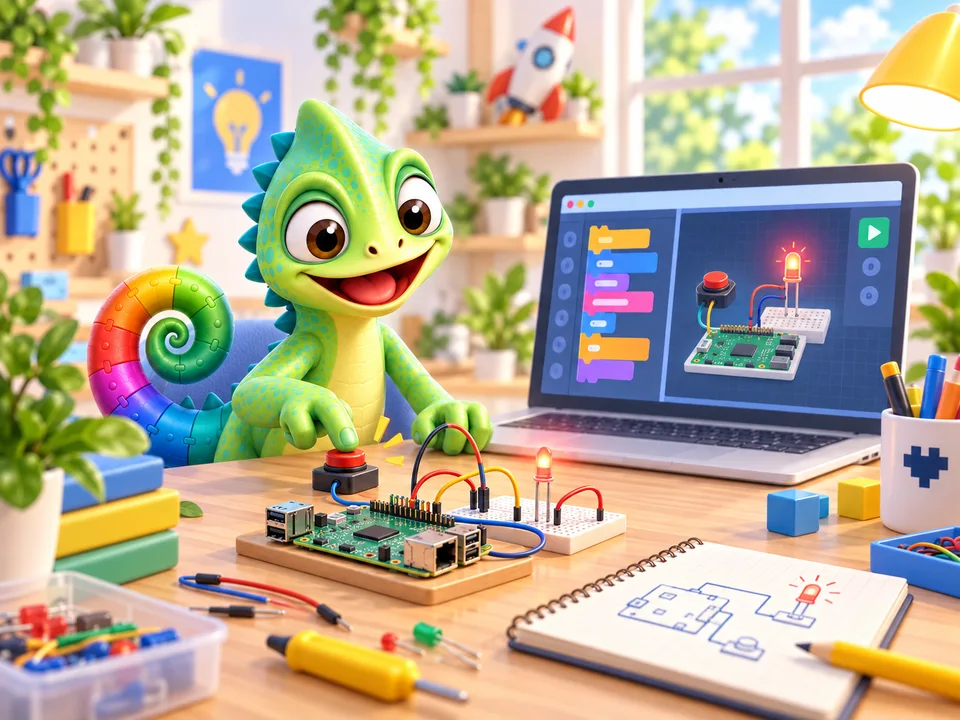
Give the computer instructions with blocks or text. Find the step that makes your drawing move.
Engineering
Design a route or a game rule, let someone try it and improve one part of your solution.
Mathematics
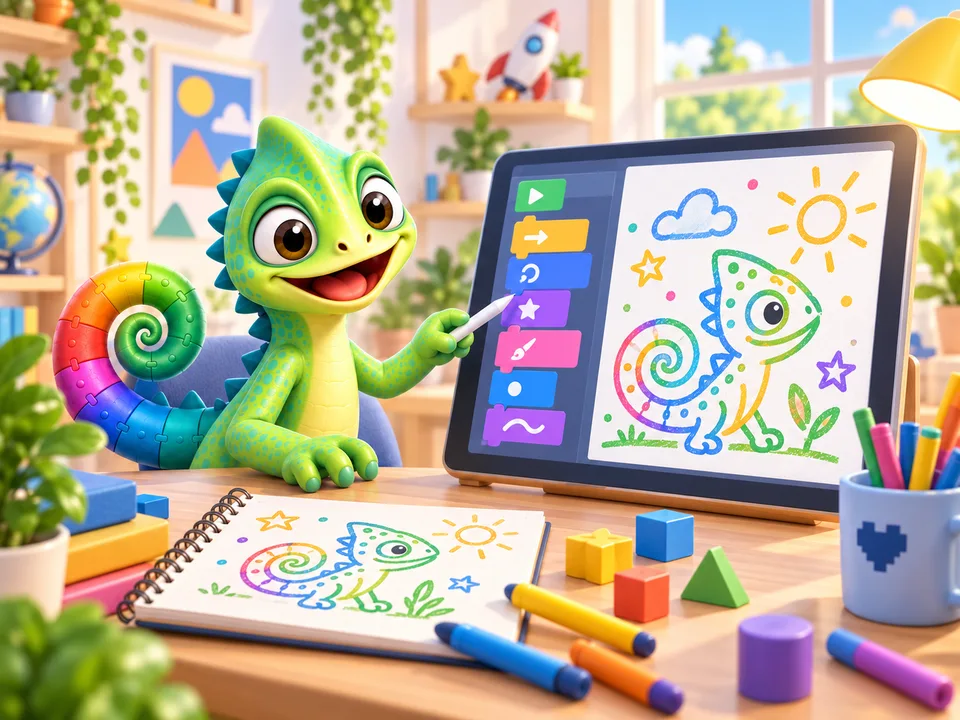
Explore angles, distances and patterns with the turtle. A square needs a turn of 360 / 4 degrees.
TRY IT TOGETHER
From four sides to six: what needs to happen to the turning angle? Ask your child to predict, draw and compare.
These first STEM projects work with free Learner. Physical projects with lights or sensors need a Raspberry Pi and suitable separate components, with adult guidance.
Background: Council for Science and Technology on STEM education01 / CLASSROOM IN THE APP
Invite learners into a lesson, see who has joined and read a program they choose to share. These desktop tools support a conversation about their work.
TEACHER / LESSON CONTROLS
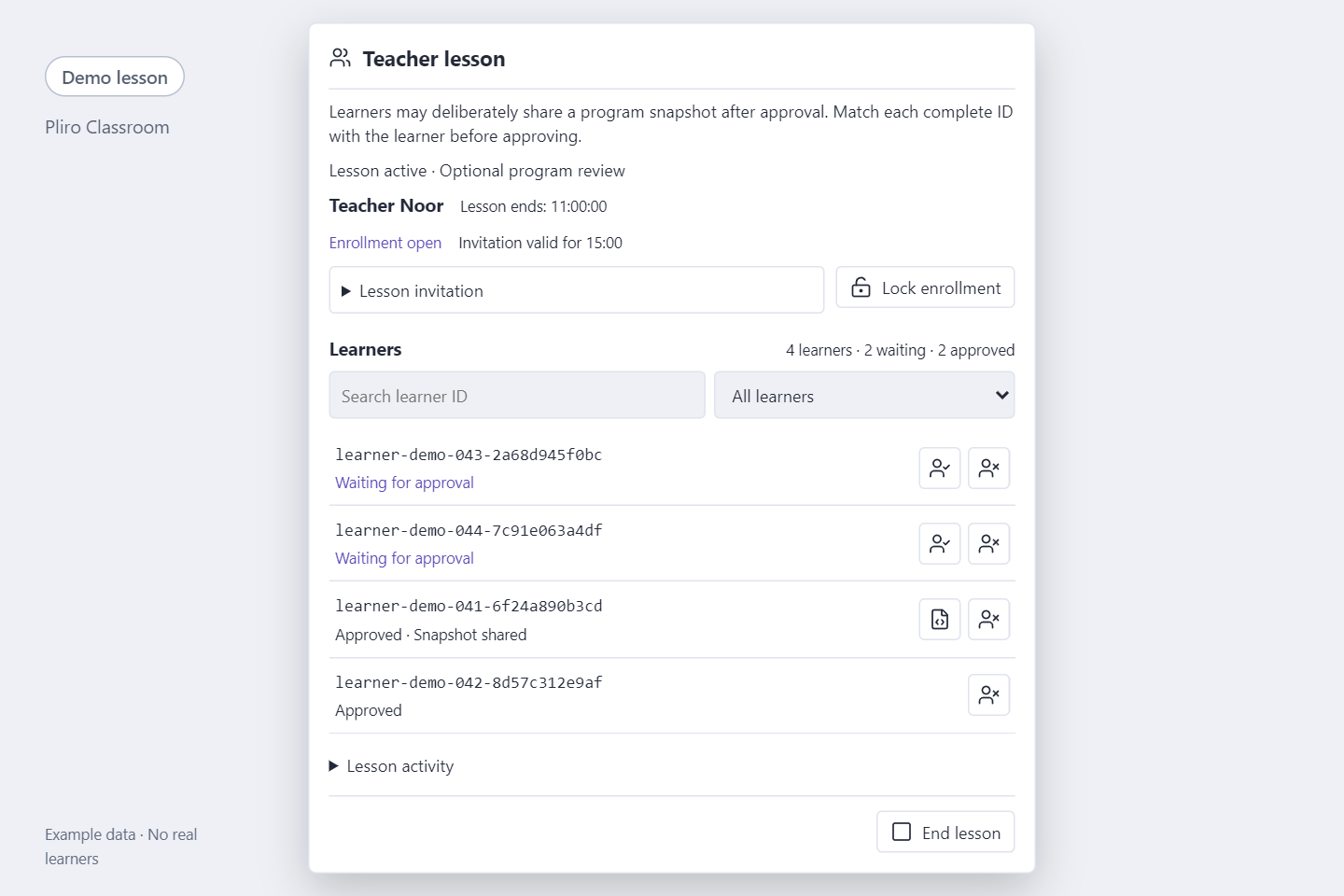
Start a lesson on the local network and give your learners its invitation. Match each complete learner ID before approving them individually.
 Open full-size screenshot
LEARNER / CHOOSE WHAT TO SHARE
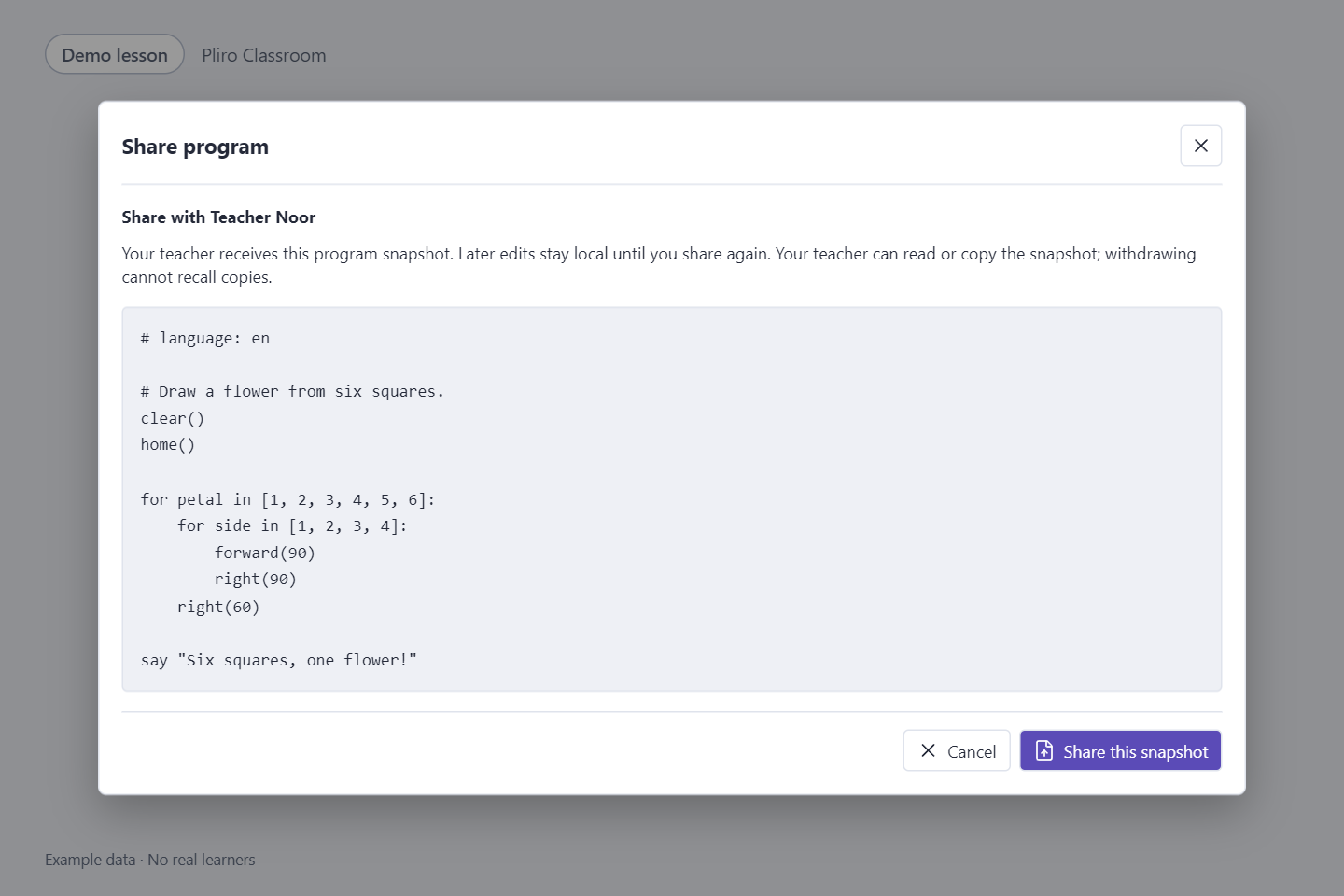
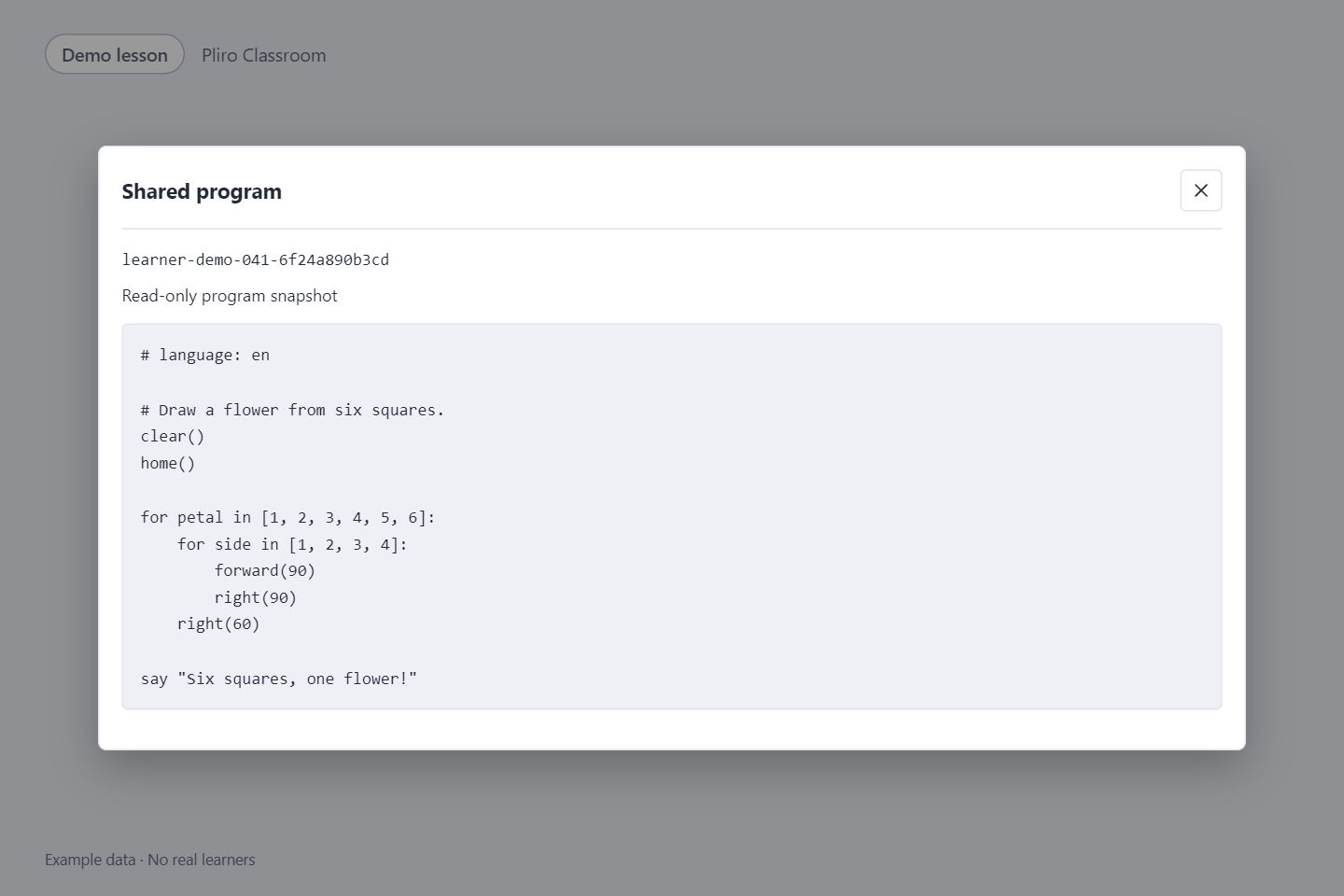
Learners see their learner ID, teacher and approval status. In a lesson authorised for program review, an approved learner can preview their selected program and confirm sharing that snapshot.
 Open full-size screenshot
TEACHER / READ & DISCUSS
Choose a learner’s shared snapshot to read their program in a read-only view. Use it to ask about a loop, discuss a change or plan the next step together.
 Open full-size screenshot
02 / THE TEACHING SEQUENCE
Four lessons to get started, each with something to make and something to explain. Set a pace that works for your learners.
| Lesson & concept | What the learner makes | What to look for |
|---|---|---|
01 Draw a routeSequence & instructions | A route for the turtle, first on paper and then in code. | Can the learner predict where the turtle will finish? |
02 Design a patternRepetition & geometry | An original shape made from repeated movements and turns. | Can the learner explain which part is repeated? |
03 Find the bugTesting & improving | A repaired program, accompanied by a prediction and a test. | Does the learner change one thing deliberately and compare the result? |
04 Make it your ownDesigning & explaining | An original pattern with a short explanation for a classmate. | Can the learner connect a design choice to a piece of code? |
Connect the activities to geometry, visual art and explaining an approach.
03 / INSIDE THE CLASSROOM
You do not have to give away the solution. A good example and thoughtful questions leave room for learners to discover it.
LESSON PLAN / 45 MINUTES
Ask learners to draw what they think the code will do.
Compare the result with the prediction. What do they notice?
Read the code together. Which instructions belong together?
Change one number and investigate the difference.
Design an original variation and explain a choice.
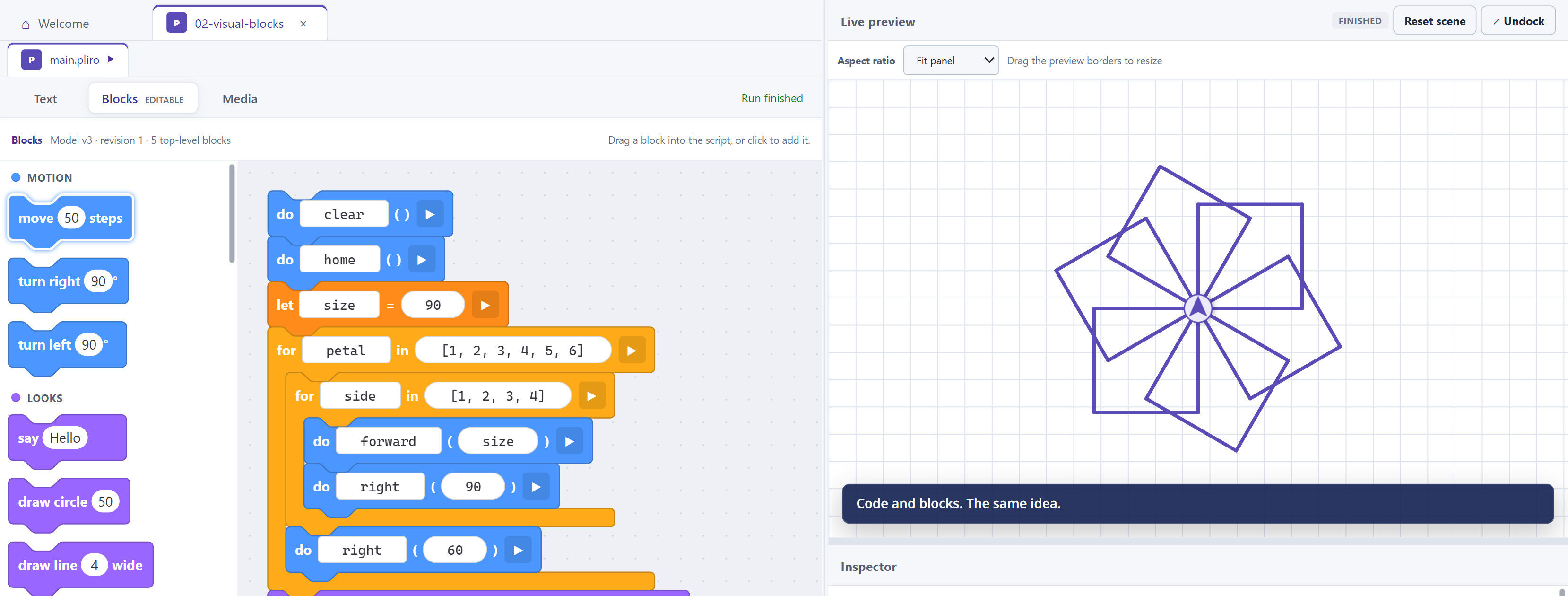
This lesson structure draws on PRIMM: predicting, running, investigating and modifying code before making a program. Read Teach Computing’s teaching principles
04 / THE TEACHING KIT
An illustrated Dutch-language teaching kit for ages 8–12: two pupil workbooks and a teacher guide covering four 45-minute lessons. Includes printable worksheets, code and answers. Use it for free in the browser or with Pliro Learner. All three PDFs are in Dutch.
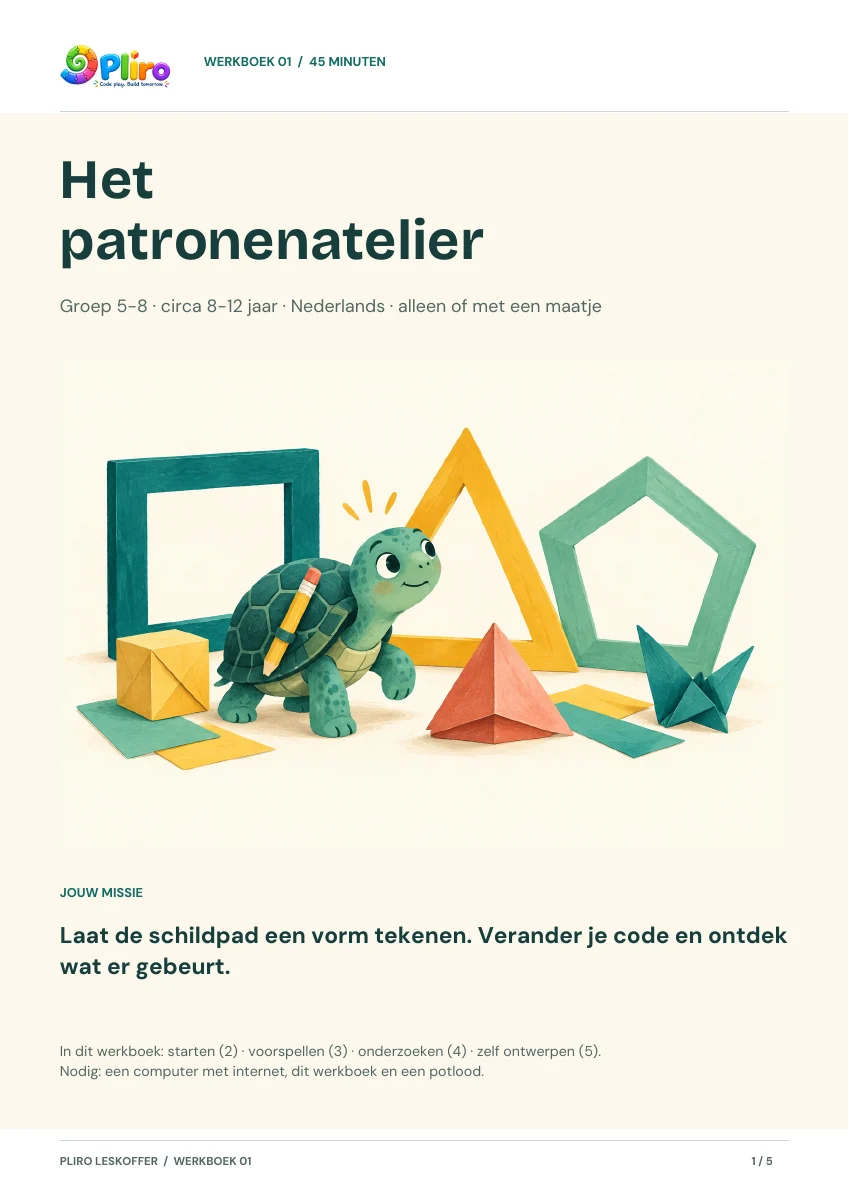 WORKBOOK • 45 MIN
Predict a shape, change the code and create your own design. With drawing grids, an experiment table and extra challenges.
Download Dutch PDFPDF · A4 · Dutch · 5 pages · 0.6 MB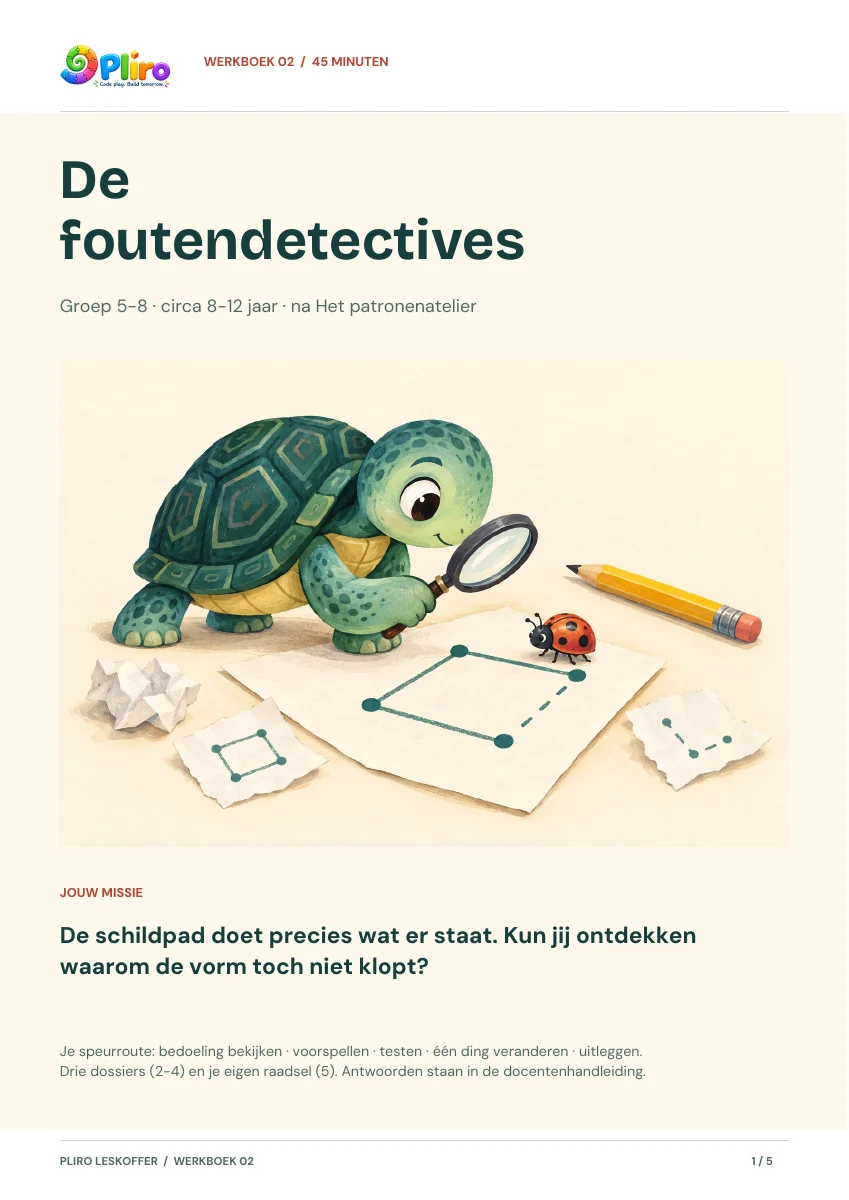 WORKBOOK • 45 MIN
Three programming puzzles with investigation sheets and hints. Pupils test one change and explain what they discovered.
Download Dutch PDFPDF · A4 · Dutch · 5 pages · 0.7 MB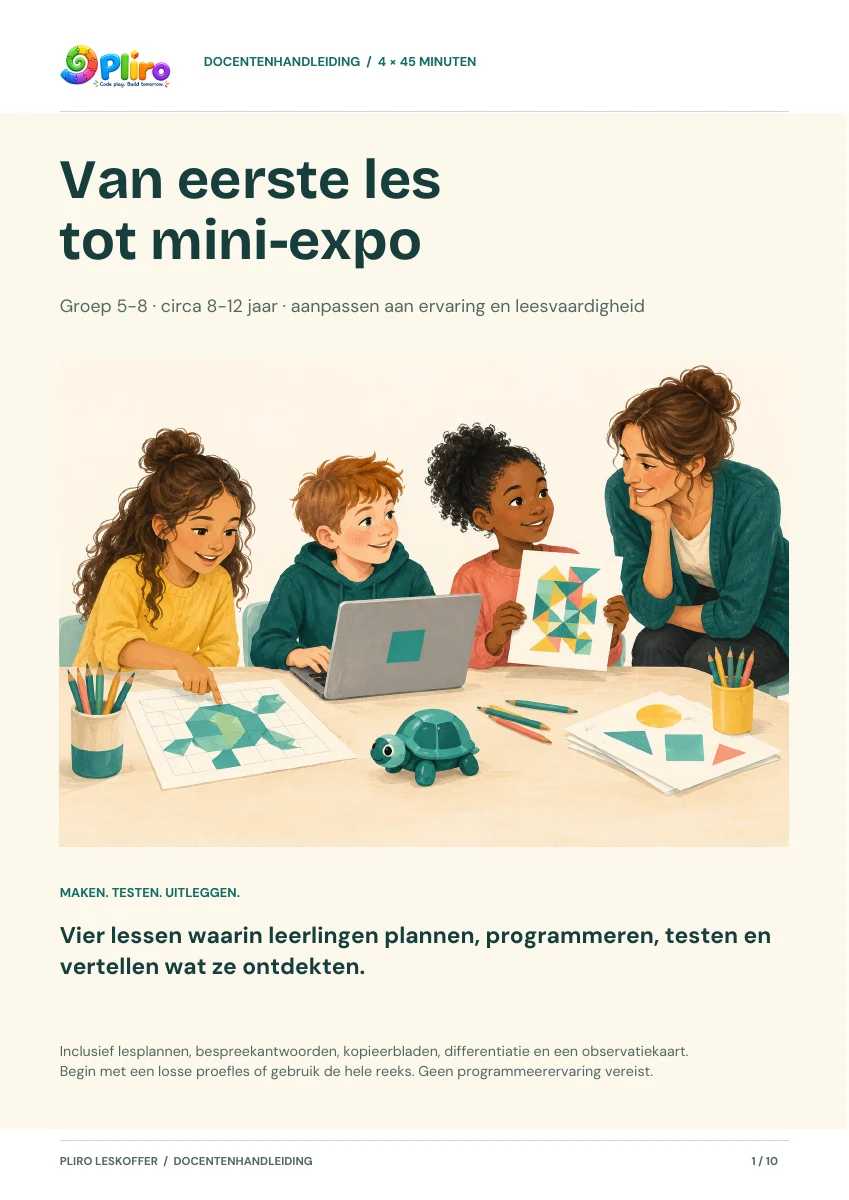 TEACHER’S GUIDE
Four lesson plans, all discussion answers, preparation, differentiation and printable route, exhibition and observation sheets.
Download Dutch PDFPDF · A4 · Dutch · 10 pages · 0.9 MBROOM FOR DIFFERENT LEARNERS
Everyone does not need to type the same code at the same time. Keep the learning goal and vary the support.
LOOK DEEPER · CHOOSE THOUGHTFULLY
Explore children's development, teaching approaches and the meaning of digital skills. With sources and something to try yourself.
FOR FAMILIES · DEVELOPMENT
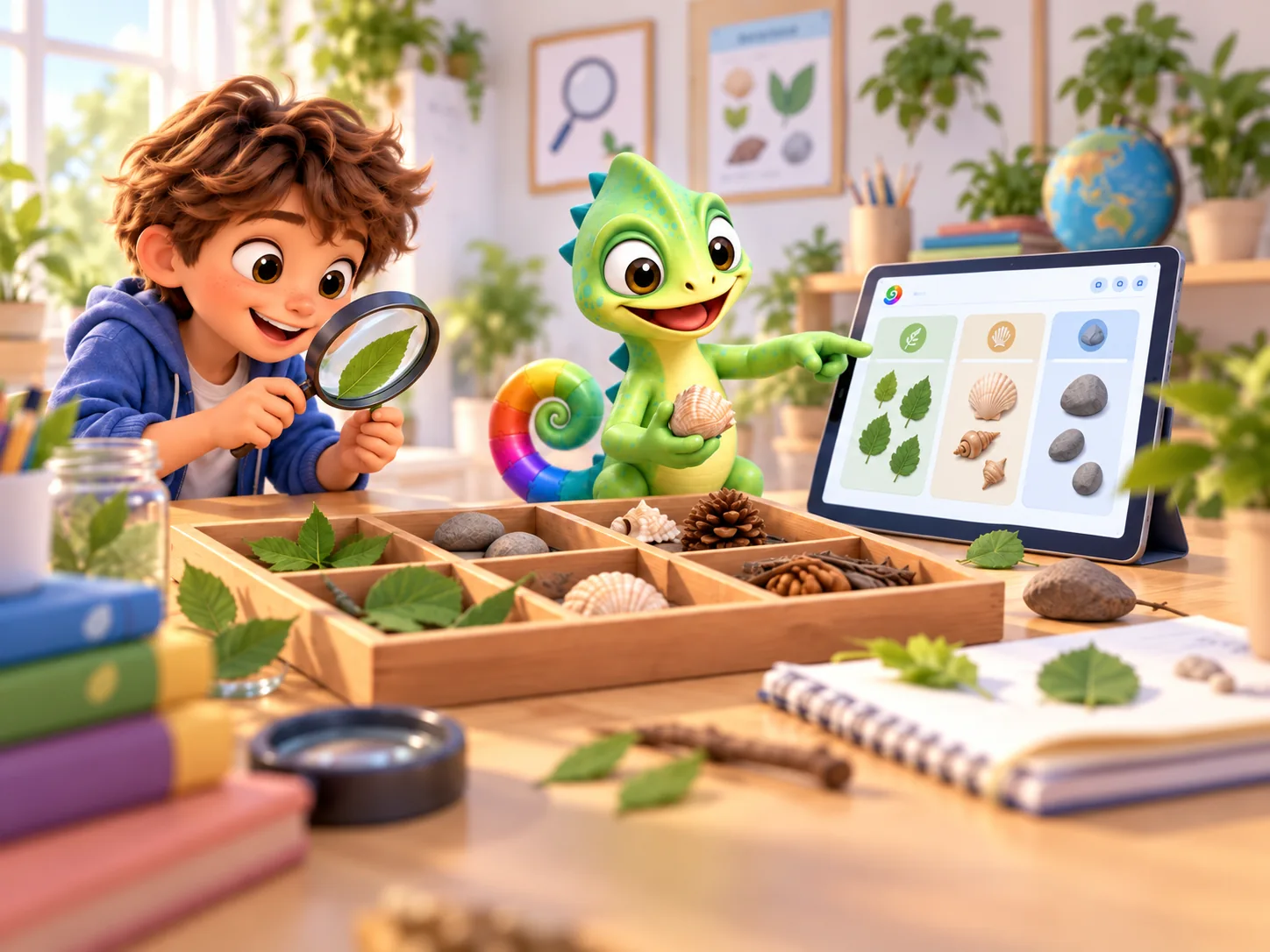
What do children practise when they learn to code? Explore problem solving, creativity and learning from mistakes, with research and a home activity.
Read the guide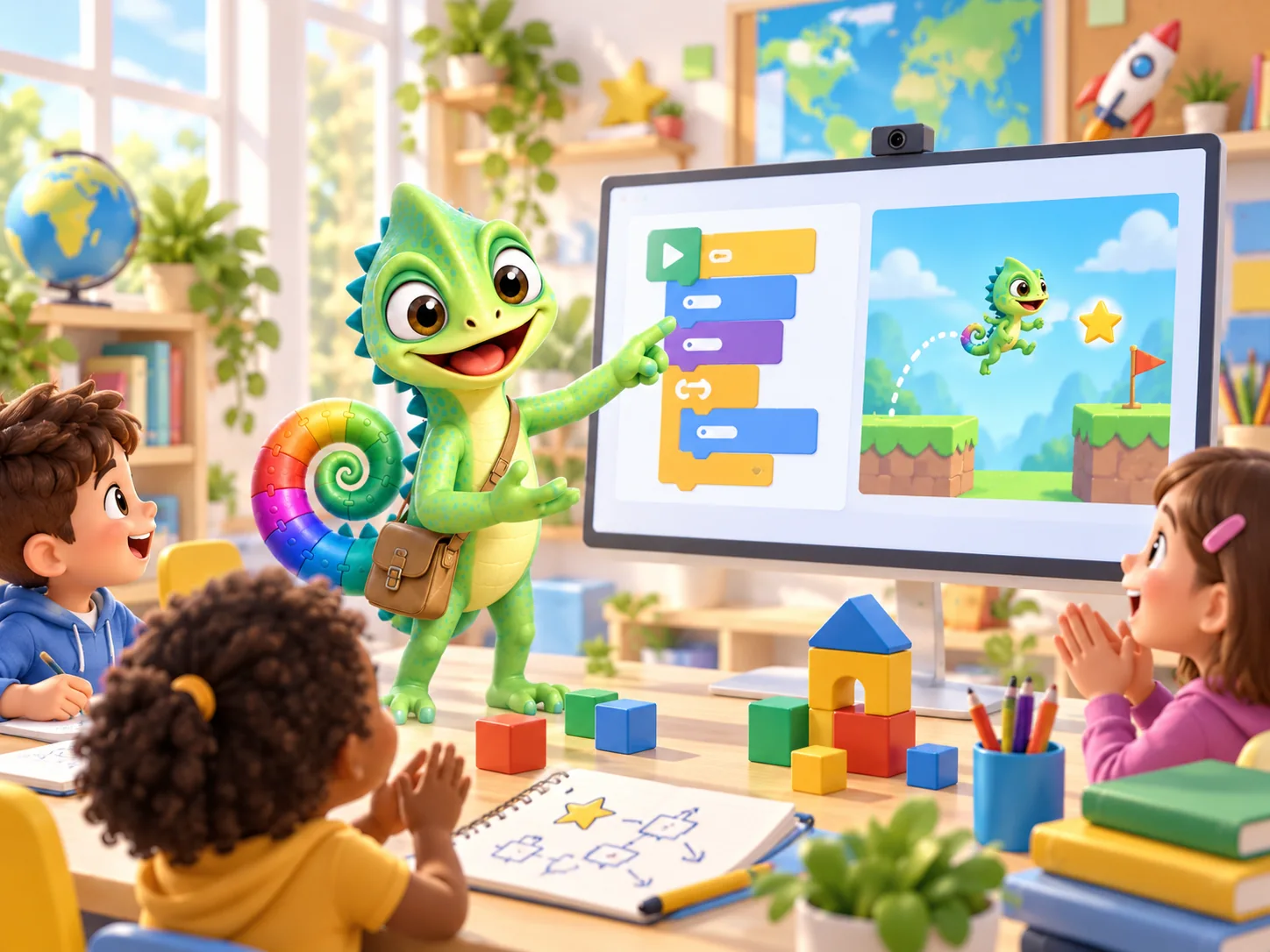
FOR TEACHERS · PEDAGOGY
A grounded start for teaching programming: PRIMM, digital literacy, differentiation and practical classroom observations.
Read the guide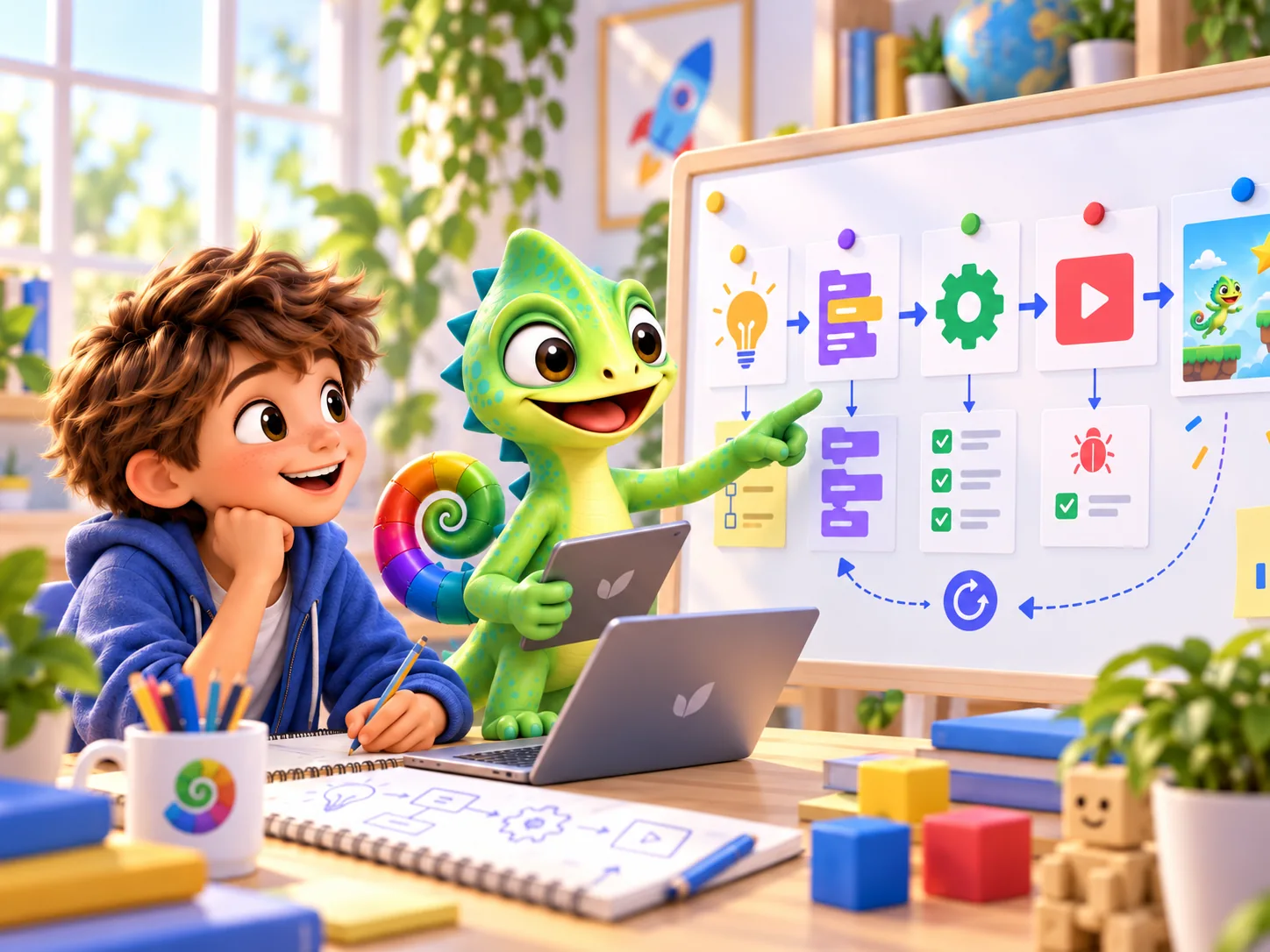
FOR PARENTS & TEACHERS · FUTURE
Coding gives children a way to try their own ideas. Explore its connections with music, art, maths and thinking critically about technology.
Read the guidePliro Classroom brings an educator licence and learner places together. For schools guiding children as they investigate, make and discuss their own programming projects.
Use Pliro’s core today: English and Dutch code, Blocks, turtle drawing and original projects. The teaching kit on this page is free and does not require a Classroom purchase.
Lesson hosting, individual approval, participation controls and optional program snapshots are implemented for managed deployments. Arrange educator authorisation and, for snapshots, separate program-review authorisation. Confirm the deployment and school privacy arrangements before a pilot with children.
Prices and licence terms are available from Logicos. Classroom and Creator Pro are separate add-ons.